Case study
Accessing AI-driven image search and generation for medical education, training, and practice
Role
Human-Computer Interaction Designer
Team
Katelyn Morrison, Steven M. Lundi, Darnell K. Adrian Williams and Joel Guerrero
Timeline
February to March 2025
Tools
Figma, Perplexity
Abstract
Redesigning a viewer for searching and generating medical images
IndaigoMed lets medical trainees and clinicians describe a finding in words, such as a right pleural effusion in the lower lobe of the left lung, and receive a CT scan that shows it. The working build placed this text-to-image model inside a conventional radiology viewer, where the image, the written report and the generator competed for the same dark screen.
The work grew out of a research study at Carnegie Mellon in which radiologists, residents and medical students described how they would use such a tool and then tried it. This case study describes what those sessions showed, how I audited the build, proposed a redesign of the viewer and its generative AI panel, and then extended the work into a fuller simulation environment for residents in training. The sections below cover what the audit found, where the toolbar should live and why, the smaller decisions about prompts, feedback and contrast, how the word “generate” was reworded, and the research behind a dashboard for radiologists.
7
Clinicians interviewed in the formative study
9
Participants who generated scans in the design probe
4
Questions in the model feedback
7
Published sources on radiology dashboards
Introduction
Radiologists read images in dim rooms, often under time pressure, and a tool meant for their training has to respect the habits they already have while introducing something they have not used before.
Medical education depends on seeing many examples of a condition, and rare or early findings are, by definition, hard to collect. IndaigoMed approaches this by generating CT scans from a written description, so that a trainee can see what a described finding looks like and compare it with a real study. The generator is useful only if the surrounding viewer lets people read, compare and question the images it produces.
The work moved through four stages, each beginning with an artifact from the stage before it. A later phase widened the question from how the viewer should behave to what a resident’s working day in the tool should look like.
01
Interviews and a design probe
We interviewed clinicians about generative AI and then watched radiologists, residents and students use the tool.
02
Audit of the existing build
I annotated every screen of the working viewer, recording each place where contrast, placement or feedback made a task harder than it needed to be.
03
Proposed viewer
I redrew the viewer around the image, moving the toolbar below it and reorganising both side panels.
04
A prompt-first home screen
I designed a home screen that begins with a single question and a few example prompts.
What radiologists told us
Before any redesign, the team asked how the people the tool was meant for imagined using it, and what challenges a text-to-CT model would raise in their work.
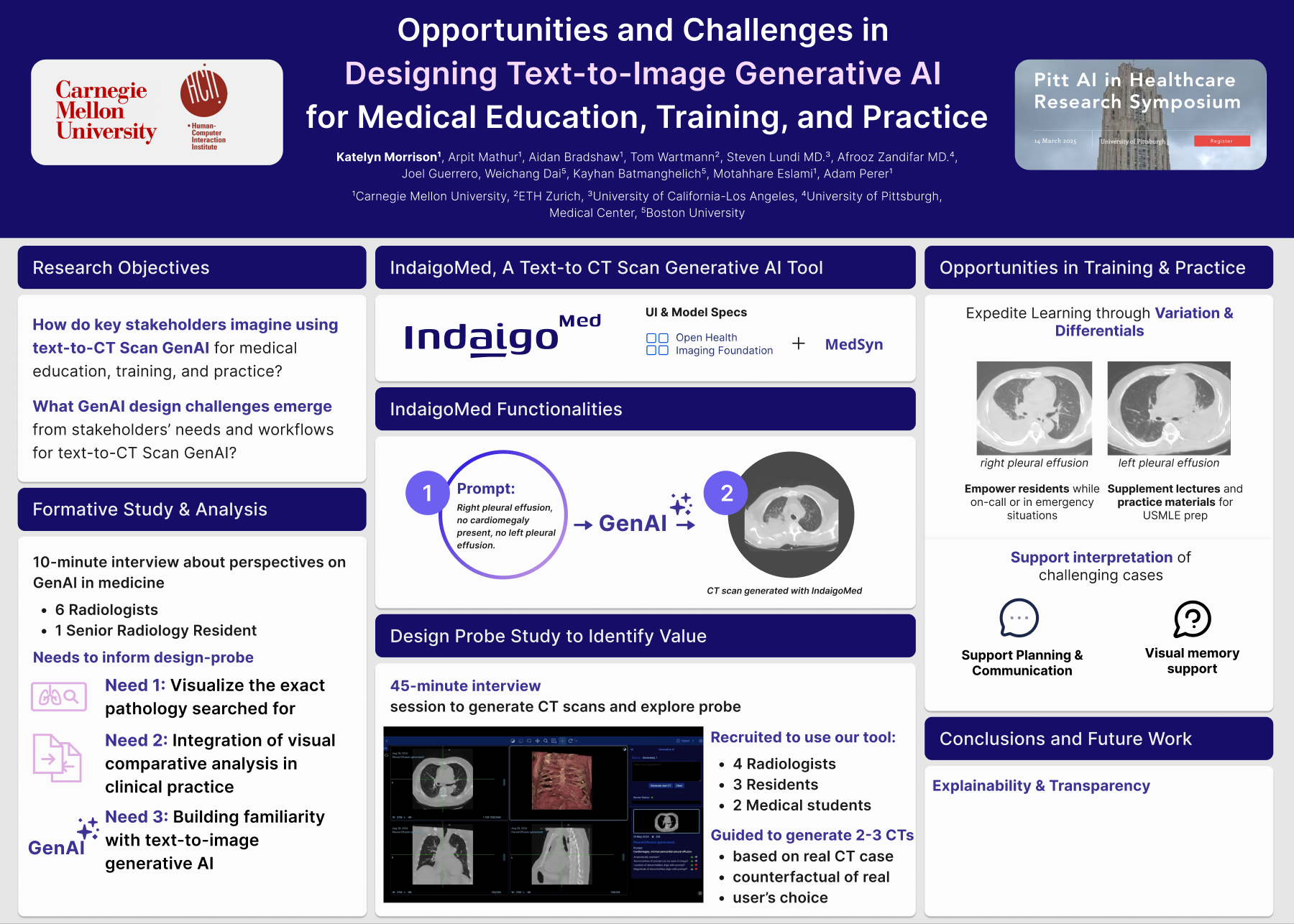
In a formative study, we held ten-minute interviews about generative AI in medicine with six radiologists and a senior radiology resident. Three needs came out of those conversations, and they shaped the design probe that followed.
In the design probe, four radiologists, three residents and two medical students each spent forty-five minutes with IndaigoMed, generating two or three CT scans based on a real case, a counterfactual of that case, or a scan of their own choosing. They described uses in training and practice, including learning from variations and differentials, supporting residents on call, supplementing exam preparation, planning and communicating with colleagues, and serving as a visual memory aid for difficult cases. The study closed with explainability and transparency as the main direction for future work, since participants needed to understand how the model arrived at each image before relying on it.
1
See the exact pathology
Radiologists wanted to visualise the specific finding they were searching for, not an approximate image of the same region.
2
Compare images in clinical practice
They wanted generated images to sit beside real studies so that the two could be compared directly.
3
Become familiar with the technology
Most had not used text-to-image tools and needed a way to build trust in what the model produced.
Figure 1
The research poster presented at the Pitt AI in Healthcare Research Symposium in March 2025, summarising the formative study, the tool and the design probe.
Auditing the existing build
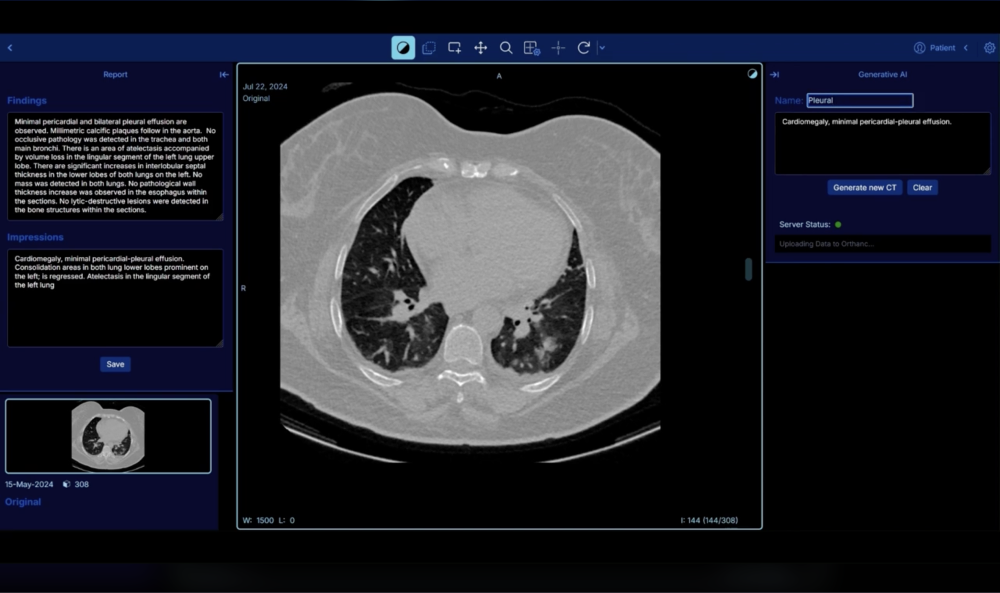
The build the participants used was already capable: it could list studies, display PET and CT series, and generate a new scan from a prompt in a panel beside the image.
Its interface, however, had grown from an open radiology viewer, and the generative features had been added at the edges of a layout that was not designed for them. I worked through each screen and left a written note wherever the design made a task harder, then grouped the notes by kind. The six groups below became the brief for the redesign.
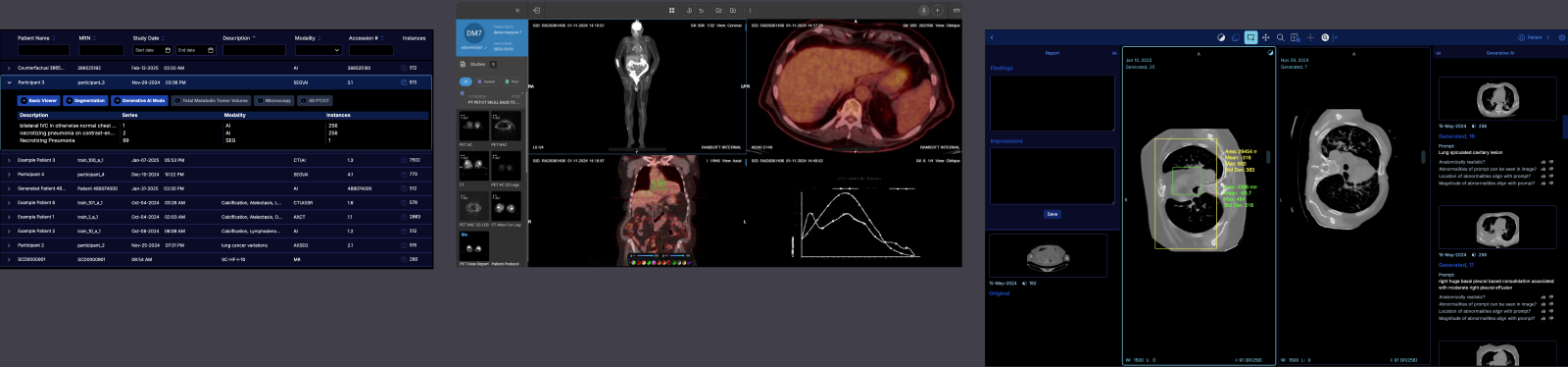
Figure 2
Three screens from the existing build: the study list, a PET/CT viewer and the generative AI viewer.
1
Low contrast on dark screens
The generate button, the pan tool, several labels and the crosshairs did not meet contrast standards against the near-black background, which matters most for people with low vision or green-weak colour blindness.
2
A toolbar far from the image
The tools sat in the top bar beside the patient controls, so every adjustment meant leaving the image and returning to it.
3
One image at a time
The library could hold only a single uploaded image, which made it hard to keep a real study and its generated counterparts side by side.
4
All feedback questions at once
Four questions about each generated scan appeared together under every result, and the stack grew with each new generation.
5
A faint confirmation
The message announcing a finished scan sat on a dark, translucent overlay and was easy to miss.
6
Prompts that could be resubmitted by accident
Nothing stopped a person from generating again from a prompt they had only half edited.
Existing
Proposed
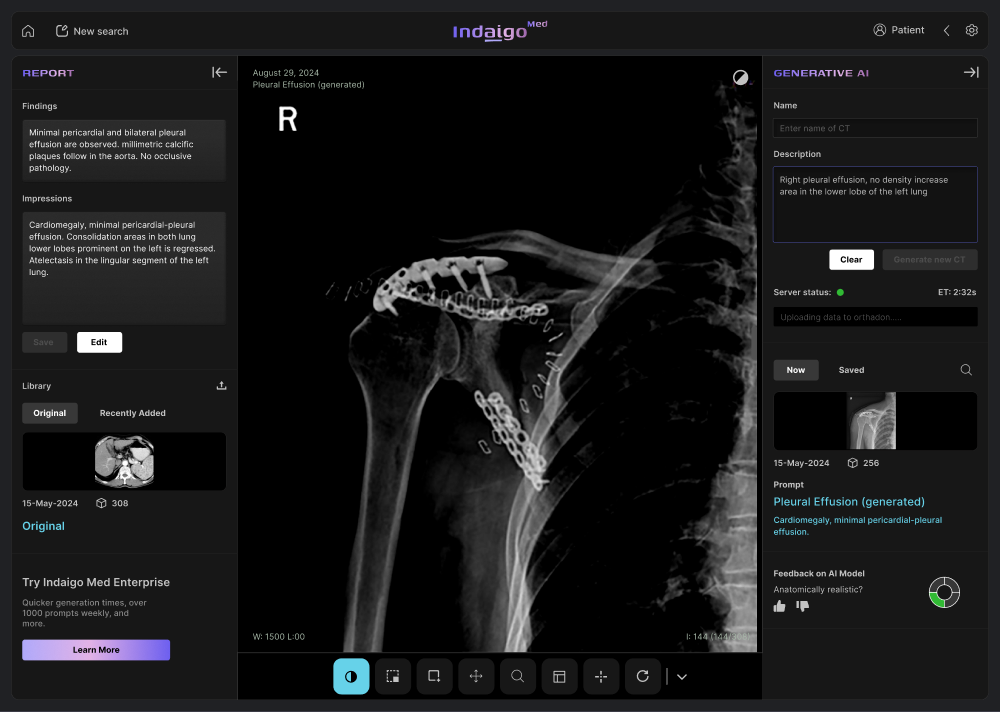
Figure 3
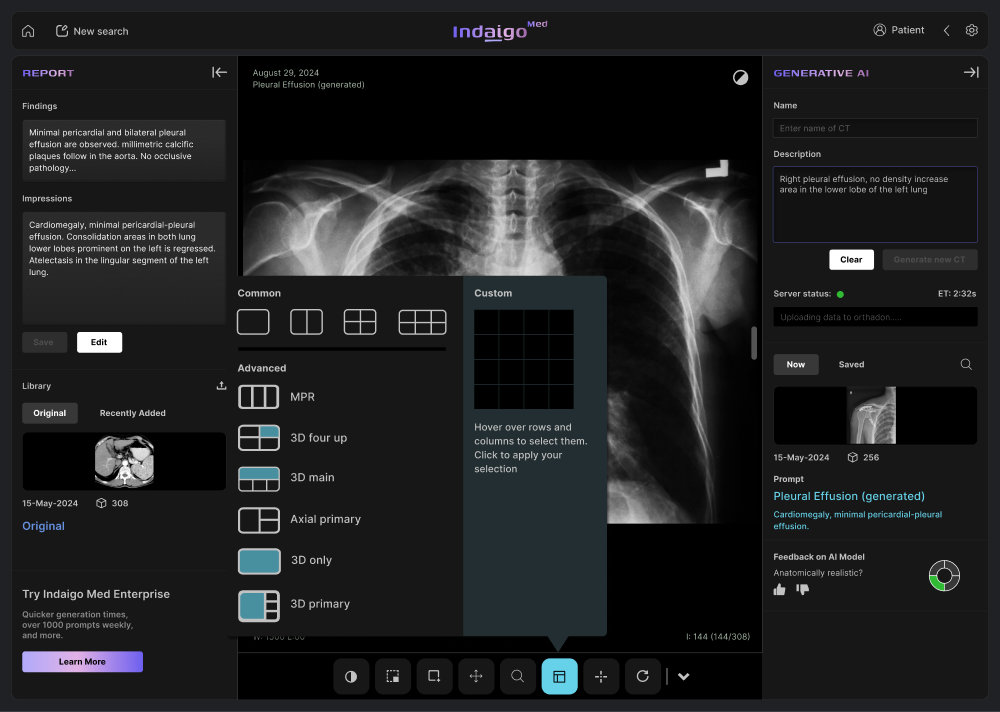
The same viewer before and after the redesign. The proposed version moves the toolbar under the image, adds a library to the report panel and keeps a history of generated scans in the AI panel.
Deciding where the toolbar belongs
In the existing build the toolbar sat at the top of the screen, a placement familiar from word processors such as Microsoft Word and Google Docs.
That convention suits documents, where the page is read from the top, but a viewer for medical images works more like a data visualisation tool, where the image should receive as much space and attention as possible. I considered two alternatives and wireframed both: a vertical bar along the left edge of the image, and a horizontal bar centred below it.
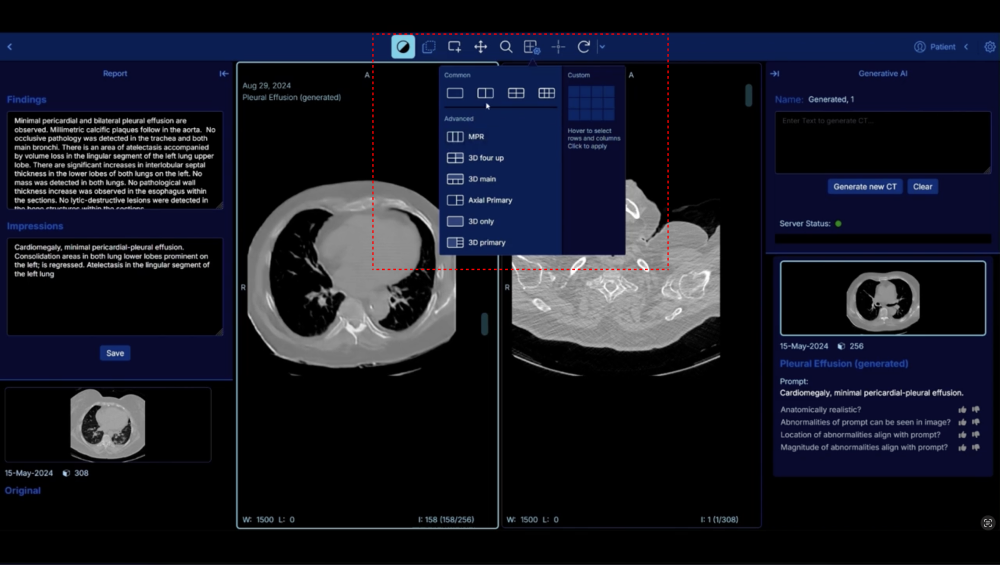
The vertical bar would have covered part of the CT and made multi-image layouts harder to arrange, because each split would lose width on one side. The bottom bar separates the tools from the image entirely, stays out of sight until it is needed, and leaves the full width to the scans. I chose the bottom placement, and the layout menu now opens upward from it instead of dropping over the image.
The same reasoning shaped the side panels. Multi-image layouts need width, so both the report panel and the generative AI panel can collapse, giving the images the space the panels used to hold. I redrew the crosshairs at the same time so they remain visible across three planes.
Existing
Proposed
Figure 4
The layout menu before and after the move. The proposed menu offers four common splits, six advanced presets and a custom grid, and it opens from the bottom toolbar so that it no longer hides the image beneath it.
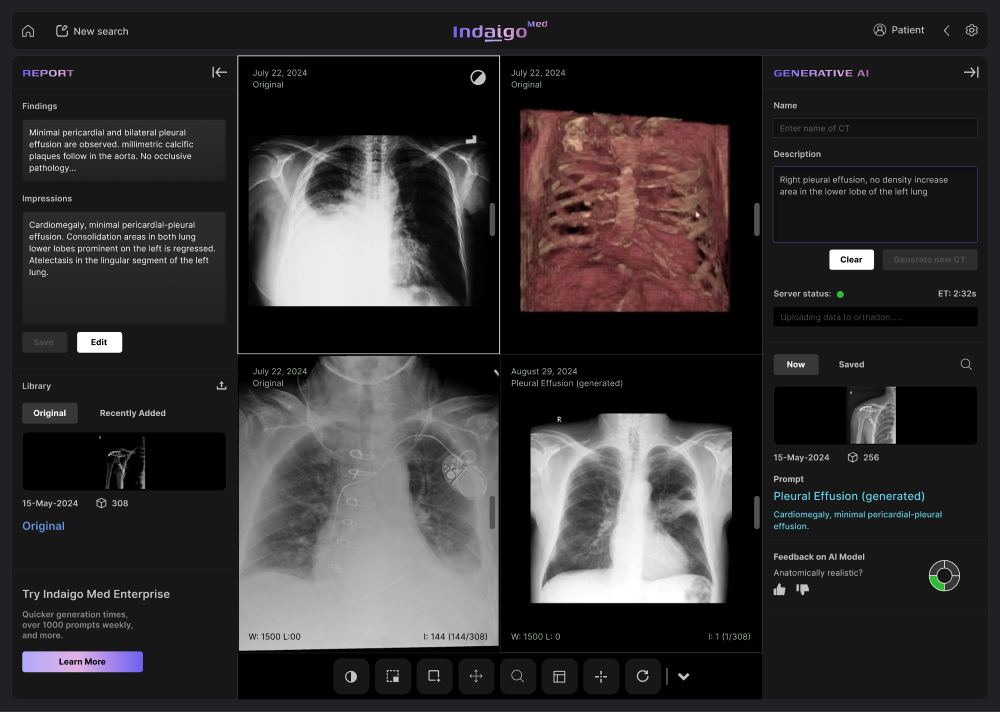
Figure 5
A four-way split comparing original studies with a generated scan. Both side panels can collapse, so the images can take the whole width when a reader needs it.
Existing

Proposed

Figure 6
The triple view with crosshairs before and after. The proposed crosshairs use a brighter green with higher contrast against the dark background, and collapsing the report panel gives the three planes more width.
Smaller decisions in the viewer
Once the layout was settled, the remaining notes from the audit could be addressed one by one.
For each decision I record the problem it addressed, what I chose and, where there was one, what the choice cost.
01
Contrast that holds up on dark screens
Problem
The highlight green used for text, the pan tool and the crosshairs fell below contrast guidelines on the dark background.
Chose
I reviewed every toolbar element against those guidelines, gave the active tool a light background and recoloured the crosshairs so they stay visible over bright and dark tissue.
Cost
The brighter active state draws more attention than before, which is intended but changes the feel of the toolbar.
02
Preventing accidental generations
Problem
A prompt that had been only partly edited could be sent again with one click.
Chose
The generate button stays disabled until the reader clears the current prompt, and the clear button stays disabled until they begin typing a new one.
Cost
Generating a second scan takes one more step, which I judged acceptable because every generation uses server time.
03
Asking for feedback one question at a time
Problem
Four questions about anatomical realism, visible abnormalities, their location and their magnitude appeared together under every result.
Chose
The questions now appear one at a time and slide to the next after a thumbs up or down, with a ring that shows how many remain.
Reason
This lowers the effort of answering and gives the team cleaner, question-by-question responses to learn from.
04
Keeping recent images within reach
Problem
The library held one uploaded image, so comparing several meant uploading again.
Chose
The report panel gained a library with tabs for original and recently added images, and the AI panel gained tabs for the current result and saved generations, with search.
05
A confirmation that cannot be missed
Problem
The success message blended into a dark, translucent overlay.
Chose
The redesigned message has a confirmation icon, higher-contrast labels for the scan’s name and prompt, and an overlay that sets it apart from the image. It appears only when a scan is generated from the AI panel.
Confirmation

Generation history and feedback
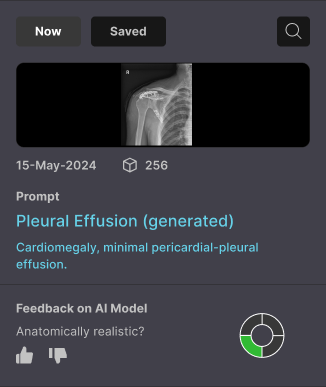
Figure 7
The redesigned confirmation, and the AI panel’s history with a single feedback question and its progress ring.
On trust
A tool that creates medical images has to earn the trust of the people learning from it before it can be useful to them.
Questioning the word “generate”
The prompt screen in the existing build looked like the AI image generators people already knew, with a single input and a button labelled Generate, and that resemblance was partly deliberate.
Matching a familiar pattern helps people know what to do, but the label carried implications that did not fit the setting. In medicine, a generated image can sound like a fabricated one. I proposed looking for a call to action that matched the tool’s purpose more closely, and argued that the brand itself should present the model as a trusted instrument for trainees and medical professionals, since concerns about data privacy and unfamiliarity with prompting were already making people sceptical.
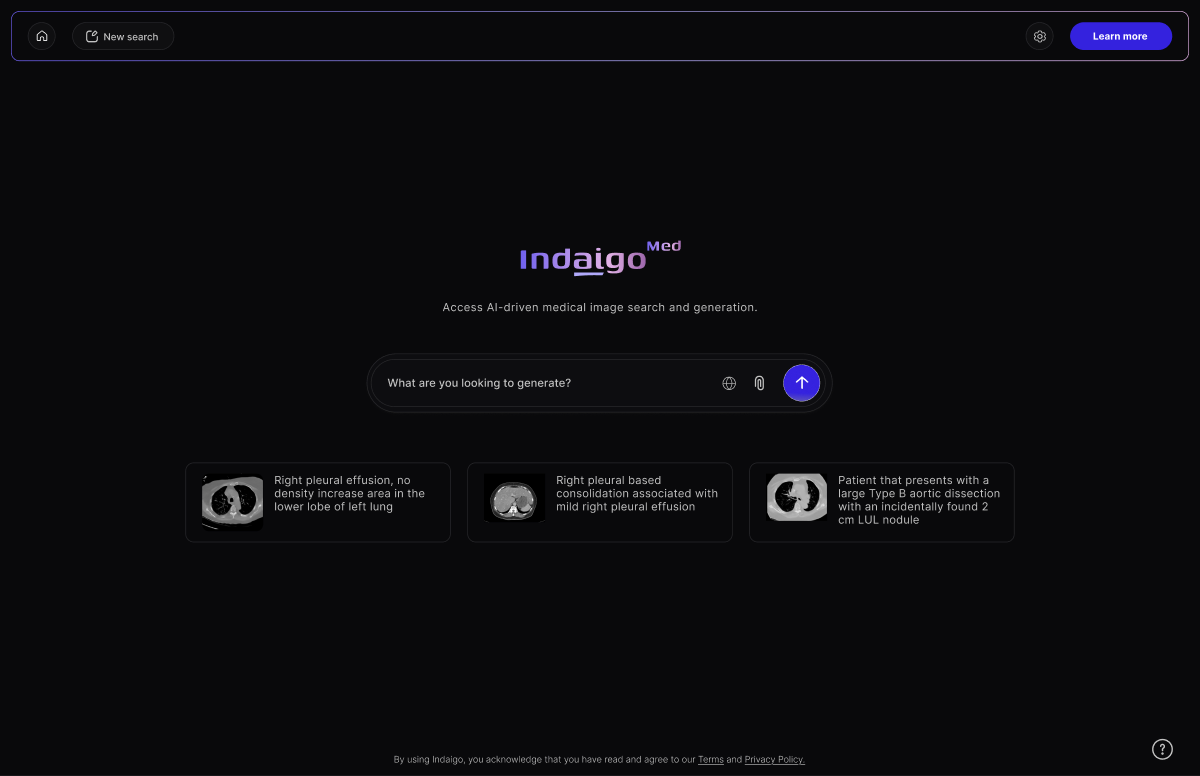
The home screen I designed keeps a single question at the centre and offers three example prompts beneath it, so that a newcomer can begin from a well-formed description instead of a blank field. The call to action changed from a bare “Generate” to the more declarative “Generate a CT scan”, which tells the reader exactly what the tool will produce before they commit to it.
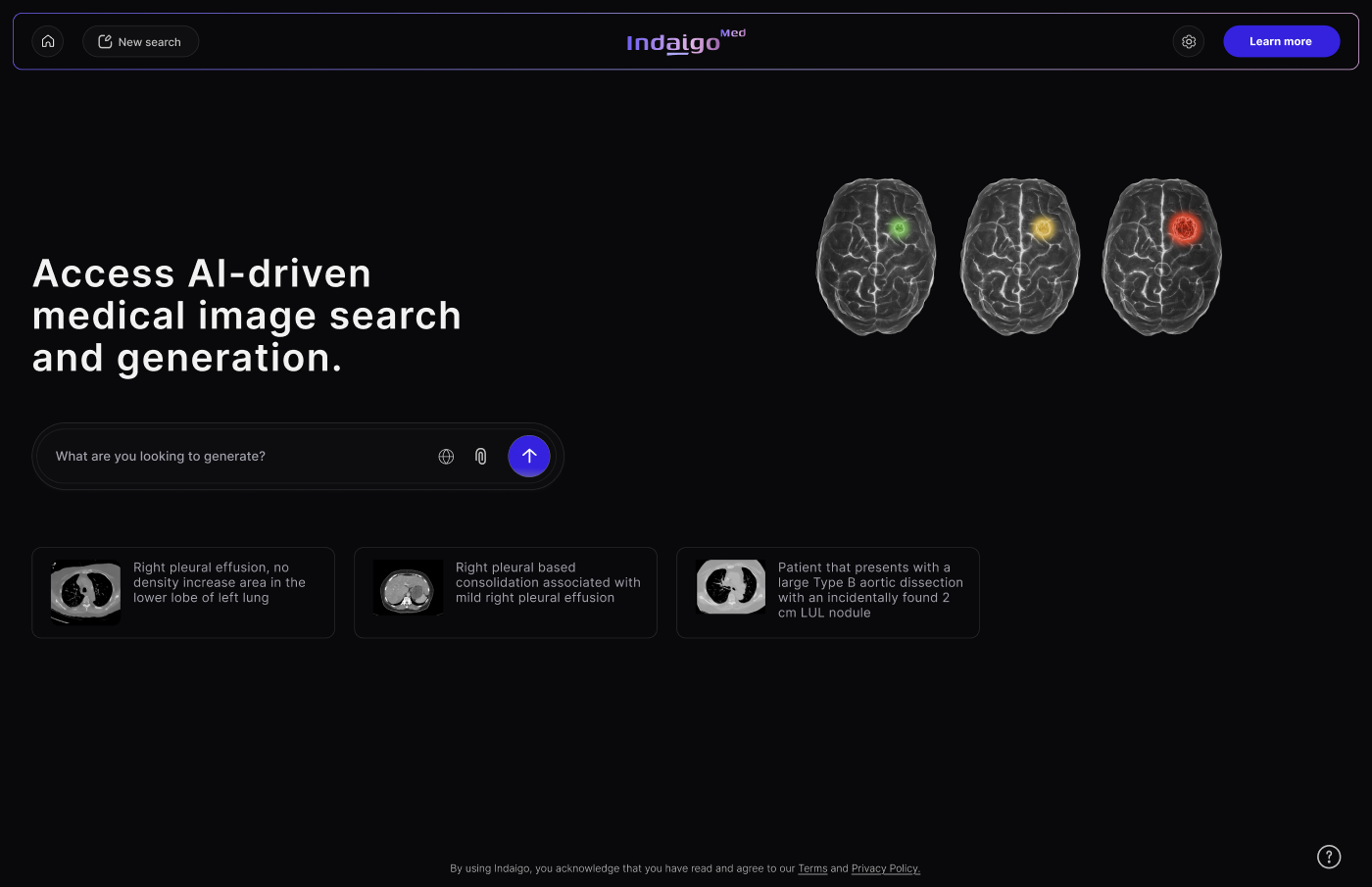
Two layouts competed for this screen. The first set the headline and prompt on the left with three brain scans on the right, and the second centred the logo, a one-line description and the prompt, with example prompts drawn from different parts of the body. The centred layout was chosen for its prominence, because it gives the prompt the centre of the screen with nothing competing beside it.
Option 1
Option 2
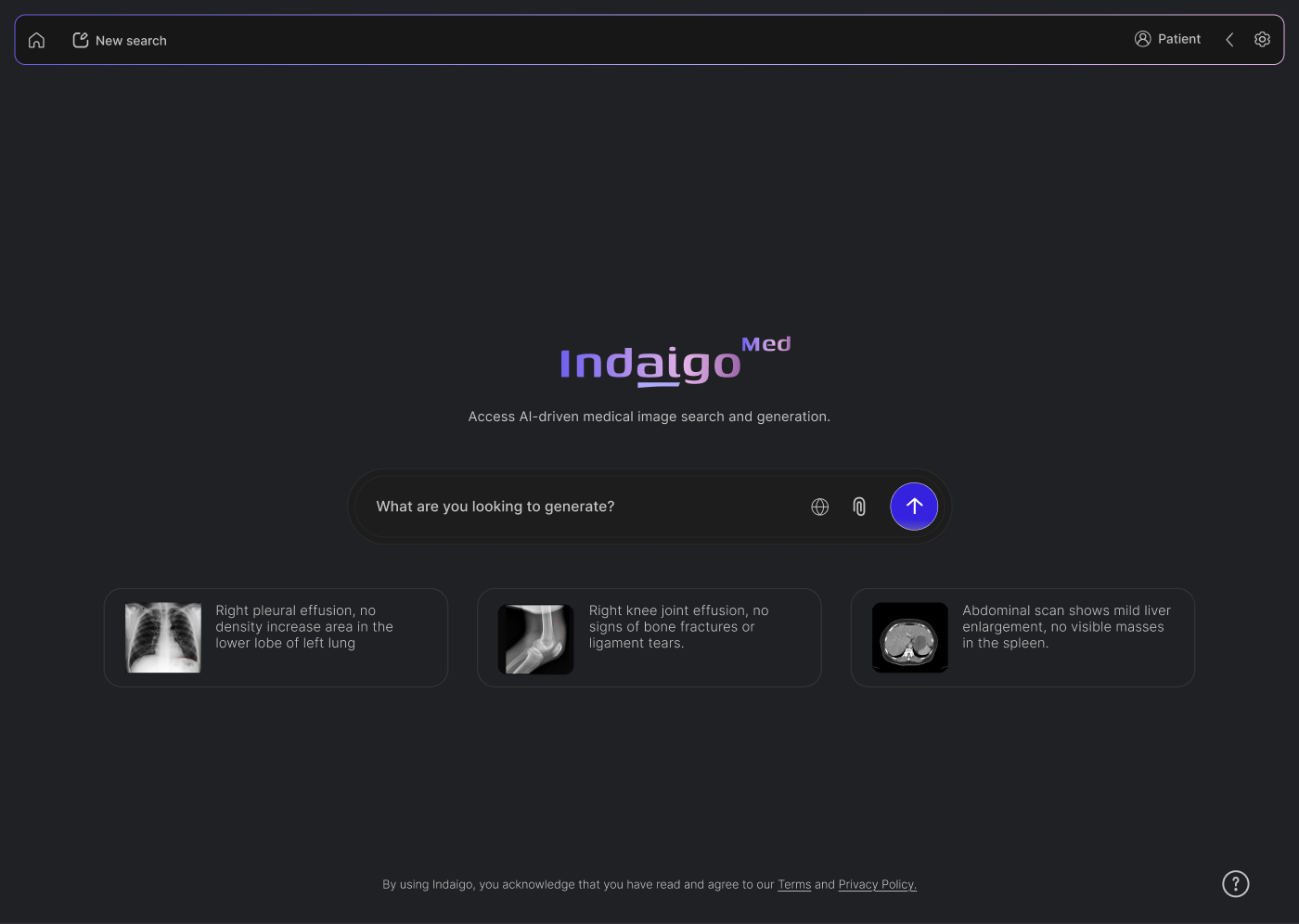
Figure 8
The two competing layouts for the prompt screen.
Figure 9
The chosen centred home screen. Example prompts written in clinical language show a newcomer what a useful description looks like.
Designing the wait
A CT scan takes about three minutes to generate, which is long enough for an empty screen to feel like a failure.
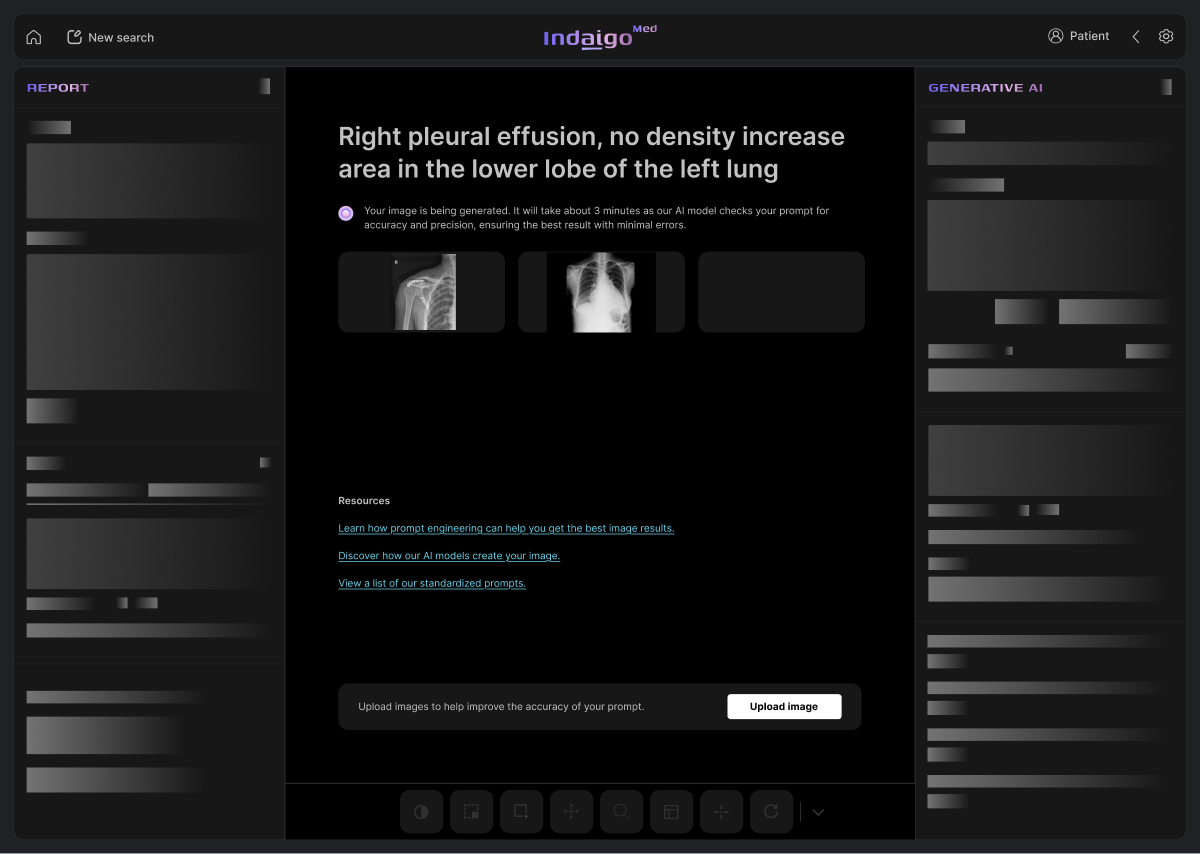
I designed the sequence after the prompt is sent as a short flow. The prompt becomes the heading of the page, so the reader can check what was asked, and a status line explains that the model is checking the prompt for accuracy before it produces an image. The report and AI panels hold skeleton placeholders in the shape of their final content, which shows where results will appear without suggesting that anything has loaded.
The wait is also used to teach. Links below the status line point to guidance on writing prompts, an explanation of how the models create images and a list of standardised prompts, which addresses the unfamiliarity with prompting that came up in the interviews. The model returns three candidates instead of one, and the reader chooses one to continue with while saving or discarding the others.
Prompt
Generating
Three results

Selection
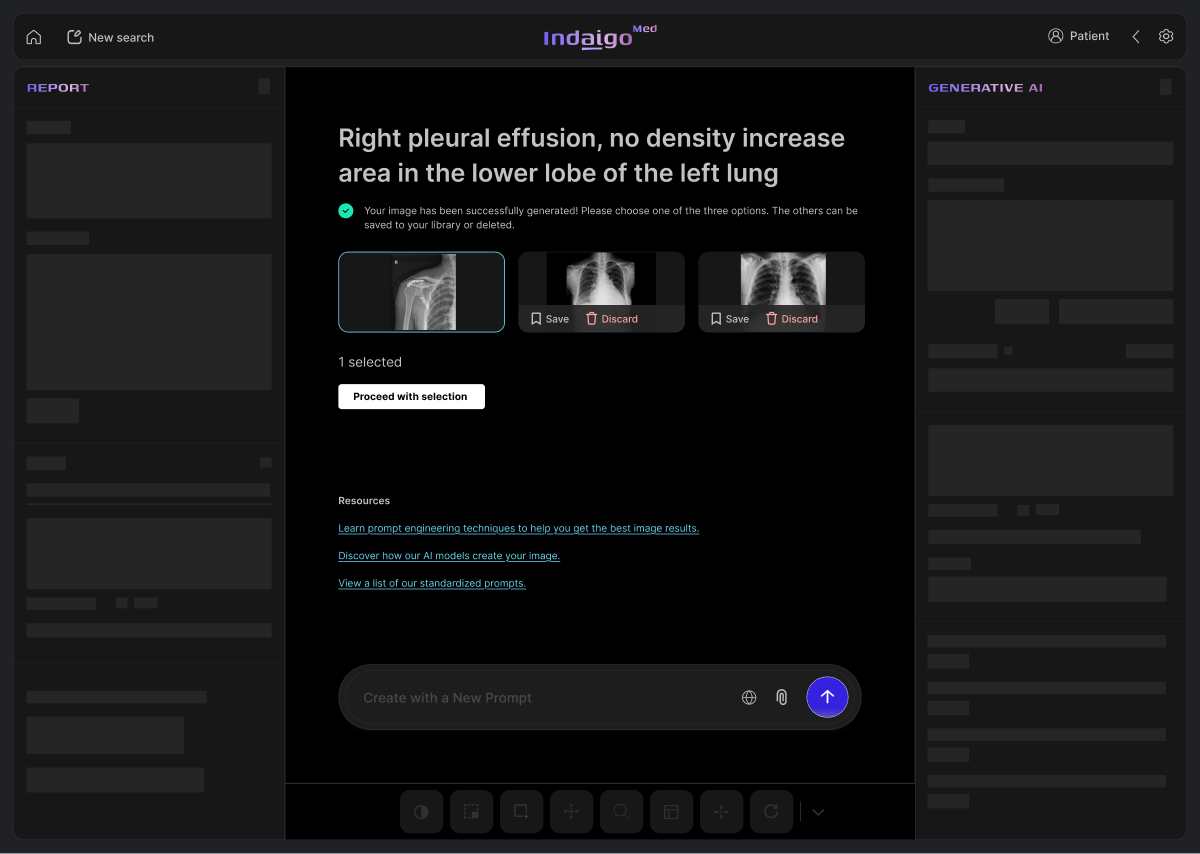
Figure 10
The flow from a prompt to a chosen scan. Skeleton panels hold the layout while the model works, and the reader picks one of three candidates.
A simulation environment for residents in training
The later part of the project asked what the viewer would need around it to serve as a full training environment, in which a resident manages a list of studies the way a working radiologist does.
I knew little about how radiologists organise their day, so before designing I used Perplexity’s research model to find published work on the measures radiology departments track, such as report turnaround, critical results and workload, and on dashboards that had been built for them. I read seven of those sources closely, and they are listed at the end of this study.
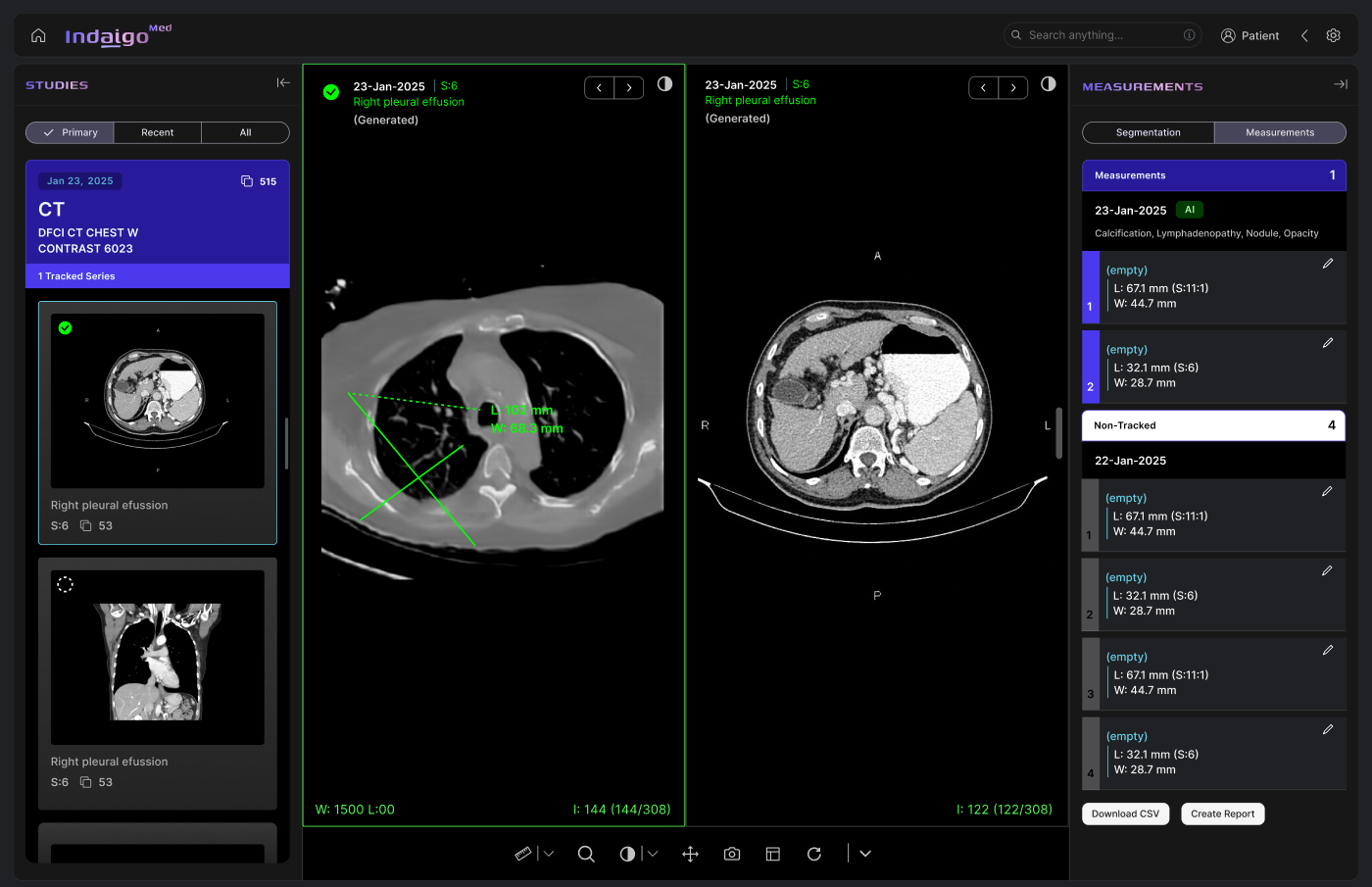
The resulting dashboard opens on the resident’s priority tasks and deadlines, with a study list below in which each patient expands to show the series available and the modes in which they can be opened: the basic viewer, segmentation and the generative AI mode. Segmentation compares two series side by side and keeps tracked measurements in a panel that can be exported. I drew two options for its side panels. Option A gave each study a large thumbnail with tabs for primary, recent and all studies, and split the measurements panel into segmentation and measurement tabs with grouped tracked and non-tracked lists. Option B showed studies in a two-column grid under a single dropdown, which fits more series on screen, and simplified the measurements into one list with counts. Option B became the final design.
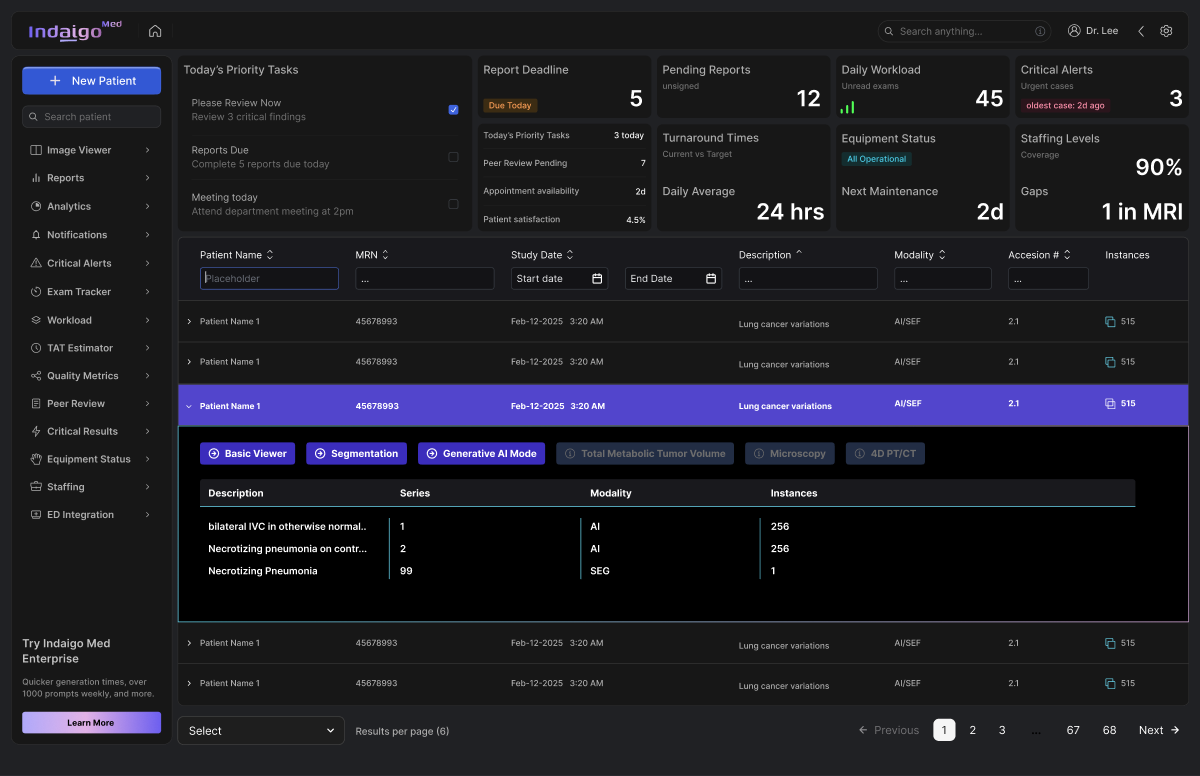
Figure 11
The dashboard for residents. The figures across the top are placeholders that show which measures the research suggested a radiologist would want to see first.
Option A
Option B
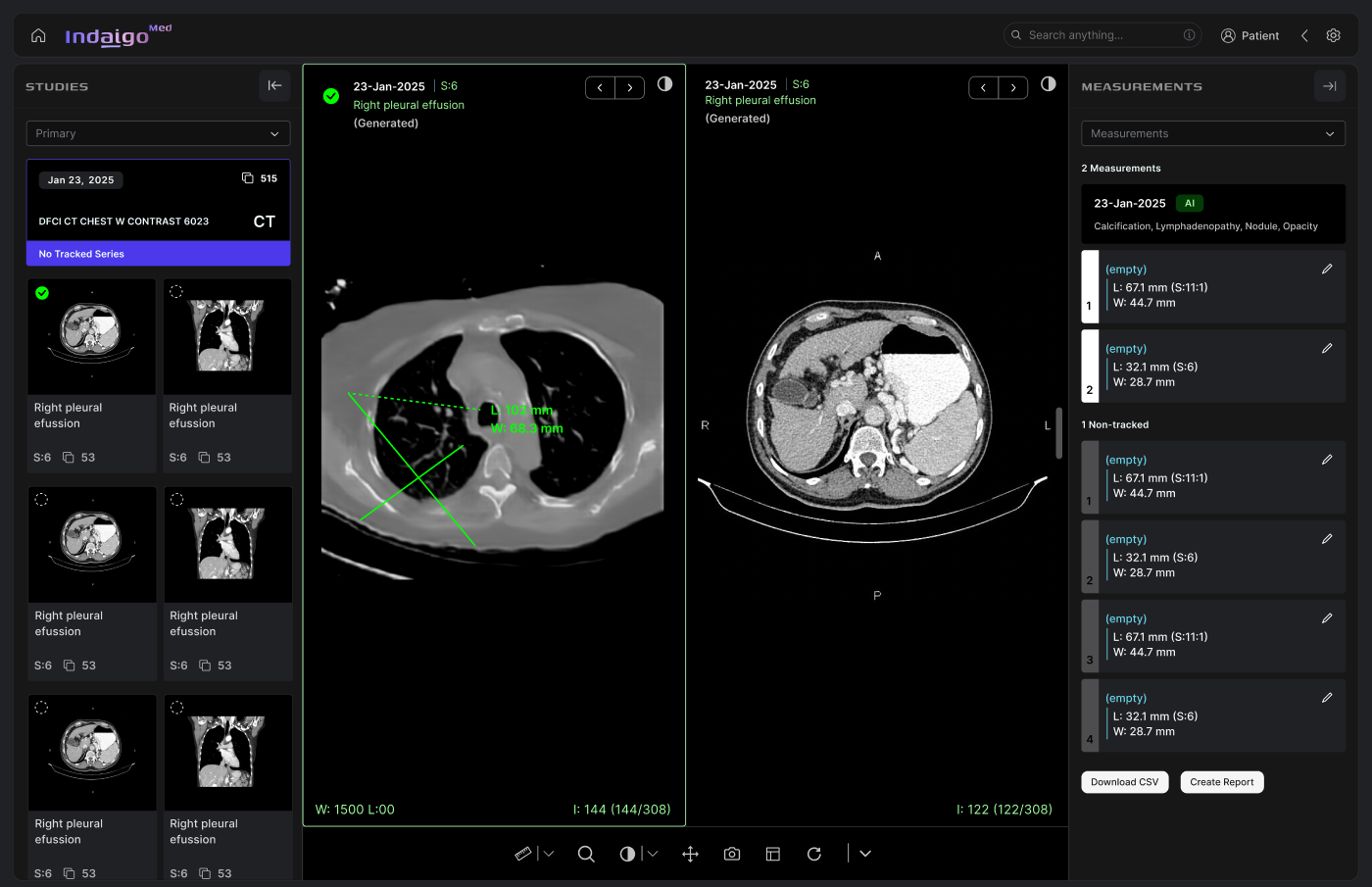
Figure 12
Two options for the side panels in the segmentation view. Option B, with a two-column grid of studies and a flatter measurements list, was carried into the final design.
Limitations and future work
The most useful habit from this project was annotating the existing build before proposing anything, because the notes made every later decision easy to explain.
Evaluation
The formative and design probe studies used the earlier viewer, so the redesign itself has not yet been evaluated with the same participants. Repeating the probe with the proposed viewer, and timing common reading tasks in both, would show whether the changes help.
Accessibility
Contrast was checked against guidelines, but not with readers who have low vision or colour blindness, and dim reading rooms deserve their own check.
Unresolved screens
Parts of the simulation environment were marked as needing revision, and the dashboard figures are placeholders until real departmental data is available.
Wording
The declarative label makes the main action clearer, but how the brand should speak about generated images more broadly is still an open question for the team.
References
- 1Morrison, K., Mathur, A., Bradshaw, A., Wartmann, T., Lundi, S., Zandifar, A., Guerrero, J., Dai, W., Batmanghelich, K., Eslami, M. and Perer, A. Opportunities and challenges in designing text-to-image generative AI for medical education, training, and practice. Poster, Pitt AI in Healthcare Research Symposium, March 2025.
- 2PubMed Central, article PMC5601514. Link
- 3Thrall, J. Key performance indicators in radiology. International Society for Strategic Studies in Radiology. Link
- 4Radiology Business. Data-driven practice: how quality metrics and data are used. Link
- 5PubMed Central, article PMC4272837. Link
- 6Radiology Business. Radiology dashboard gives ED docs real-time insights into pending imaging exams. Link
- 7UMass Chan Medical School, Department of Radiology. Quality dashboard, July 2018. Link
- 8PubMed Central, article PMC11068645. Link
Building tools for science? Let’s talk.
I partner with research teams, labs, and science publishers to design software and visualizations that make complex research easier to use and understand. Tell me a little about your project.