Case study
Mapping global autism prevalence research for researchers and the public
Role
Human-Computer Interaction Designer
Team
A director of web development, a senior UX designer, a technical project manager and Joel Guerrero
Timeline
September 2024 to March 2025
Tools
Figma
Abstract
Redesigning a ten-year-old map of autism prevalence studies
The Transmitter’s autism prevalence map gathers studies of how common autism is in countries around the world, with one dot for each study and larger dots for the studies its expert advisers recommend. It shows where the evidence is strong and where it is missing, and researchers use it as a source when they write.
The map had been built ten years earlier and still worked, but it was hard to read and hard to use. This case study describes how I redesigned its three main parts, the filters, the map dots and the timeline of studies, while bringing it into The Transmitter’s new design system. It covers what was wrong with the original, the layouts I tested for the filters, how the dots were made accessible to people with colour blindness, and the small cue that made the timeline usable.
10
Years since the original map was built
3
Components redesigned: filters, dots and timeline
2
Filter layouts tested with the team and the client
4
Filters added after the first review
Introduction
The Transmitter, a publication covering autism and neuroscience research, asked for a redesign of a map its readers had relied on for a decade.
My director of web development had built the original map, so he knew what was technically possible with the code behind it. I led the redesign with guidance from a senior UX designer, and our technical project manager set up calls with The Transmitter to agree the scope, the technical limits and how much the team could build once the designs were handed off.
The brief had three parts: make the map easier to use, make it accessible, and rebrand it with The Transmitter’s new design system. The work moved through four stages, each focused on one part of the map.
01
Audit of the original map
I worked through the existing map and recorded where its filters, dots and timeline got in the way.
02
Filter layouts
I designed two placements for the filters, took them to an internal critique and then to The Transmitter.
03
Accessible map dots
I documented every dot state and checked the colours against WCAG and for colour blindness.
04
A cue for the timeline
I added a short help line so that visitors know the timeline can be dragged.
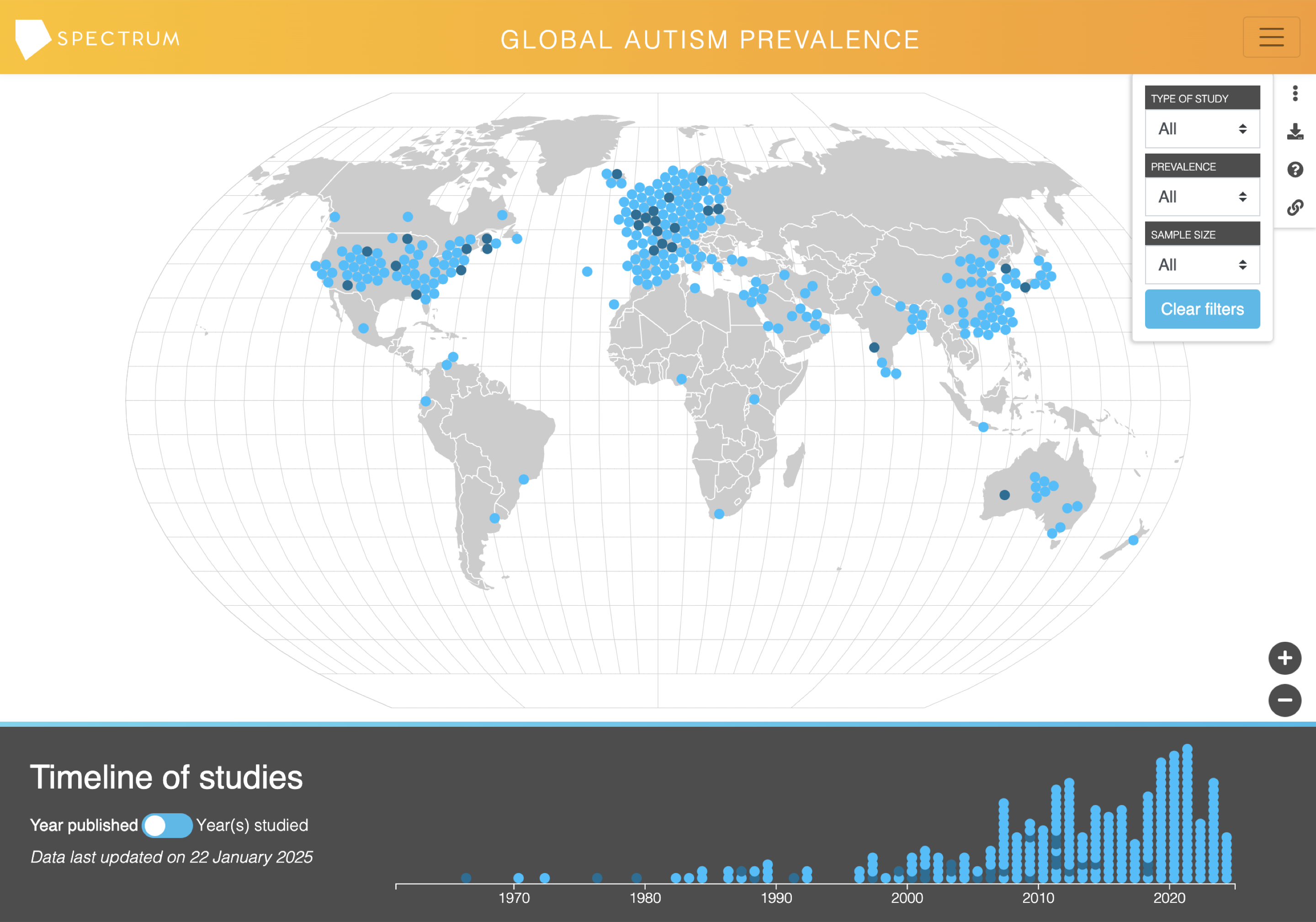
The map as it was
The original map was complete and accurate, and its problems were mostly about how people found their way around it.
I used the map as a reader would, setting filters, clicking dots and dragging the timeline, and noted each place where basic design heuristics, such as labelling an icon or showing a selection, were missing. Five problems stood out.
Figure 1
The original prevalence map, built ten years earlier.
1
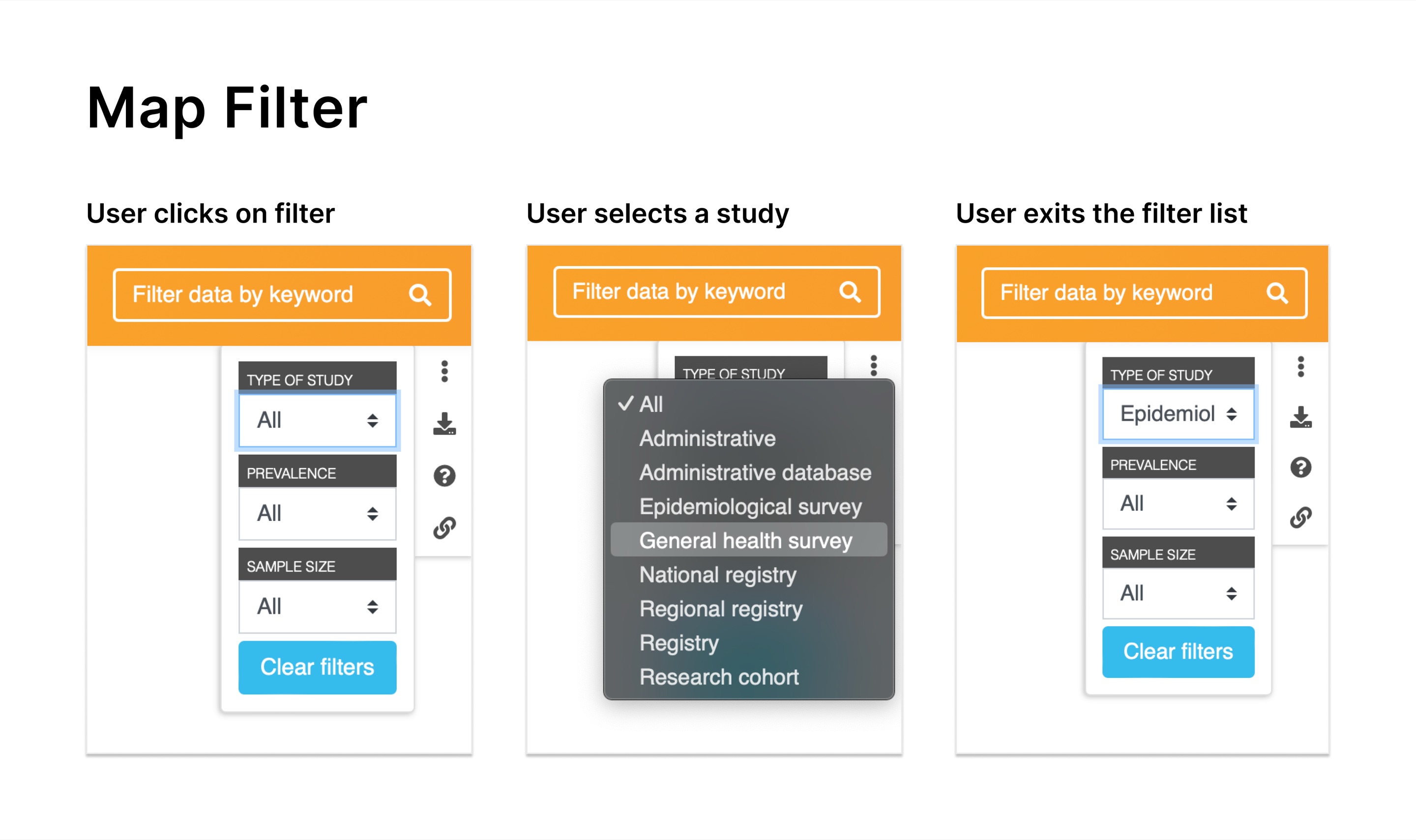
Filters that hide their own values
The filter fields were so narrow that the selected option was cut off, so it was hard to tell which filter was active.
2
Icons without labels
A column of icons beside the filters had no labels, so the only way to learn what one did was to click it.
3
A card that covers the map
Selecting a study opened a card on top of the map, hiding the dots behind it, and zooming in let the map spill across the whole page.
4
Dots that fail contrast
The light blue dots and their states did not meet WCAG contrast guidelines against the grey map.
5
A timeline that does not look interactive
The timeline could be dragged to choose a range of years, but nothing on screen suggested that it could.
Filters
Study card
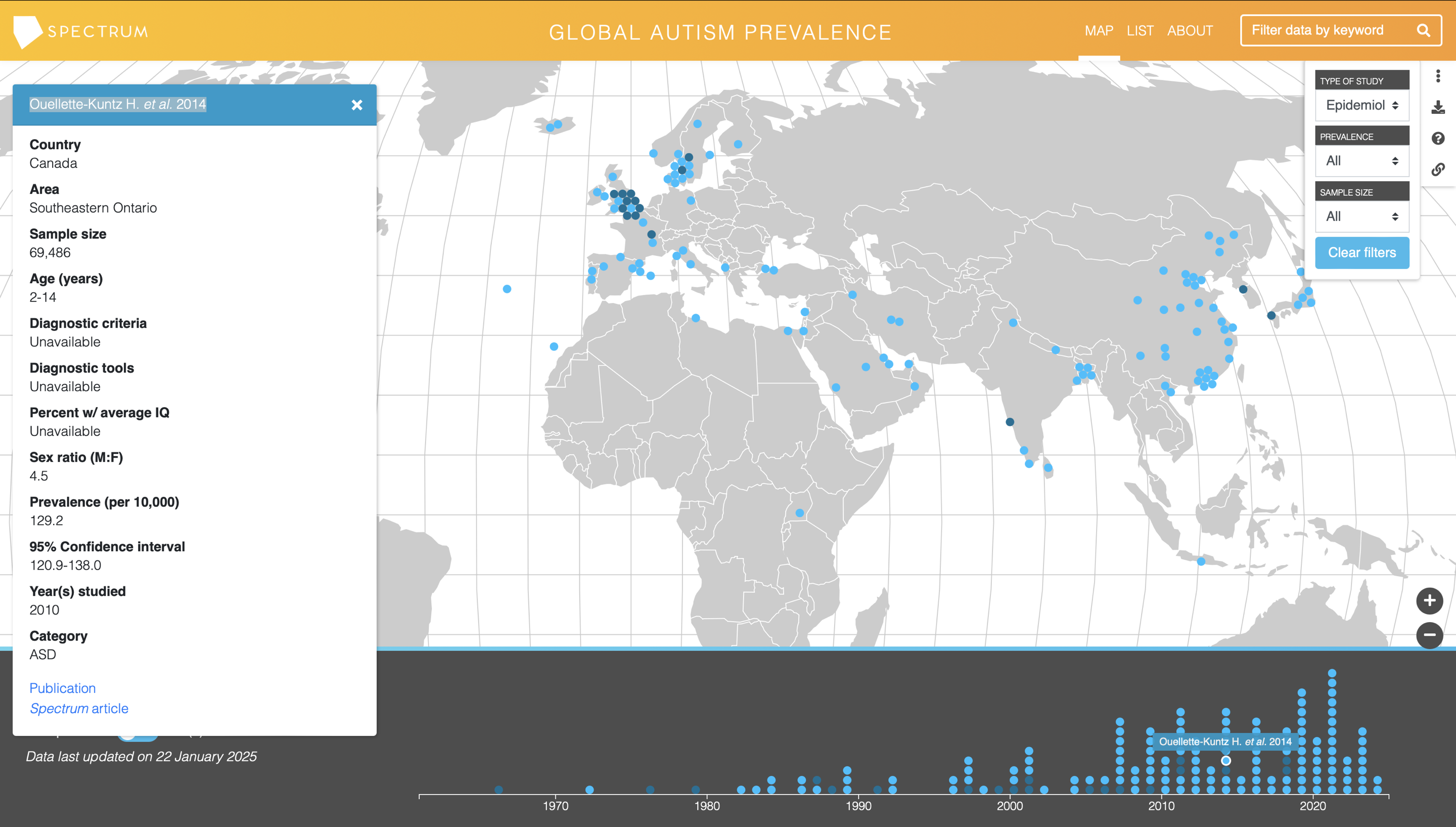
Figure 2
Two of the problems in the original map. The selected filter value is cut off by its field, and the study card covers dots on the map.
Planning a guided tour
Part of the kickoff discussion in the first round was how to welcome people who were new to the prevalence map.
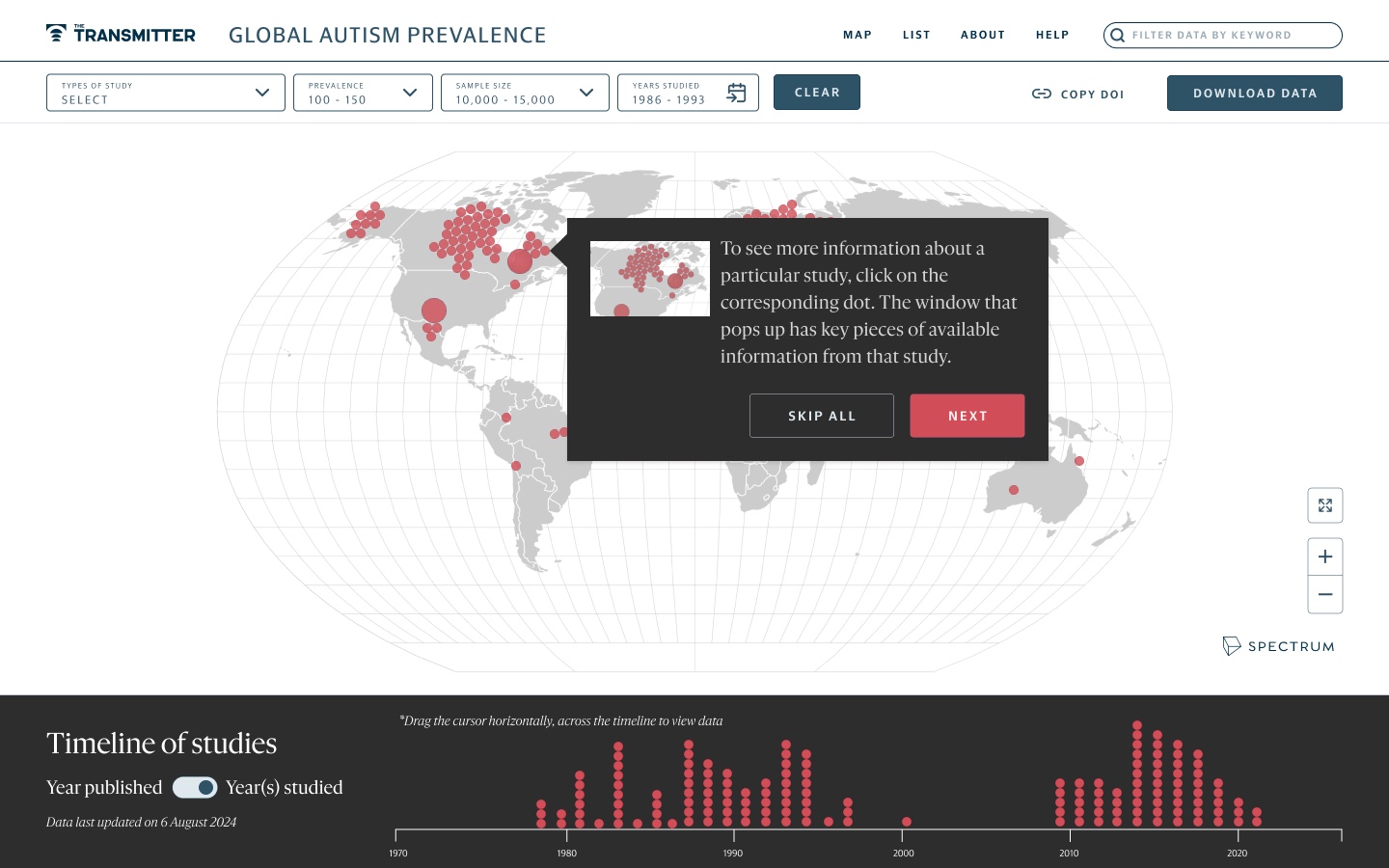
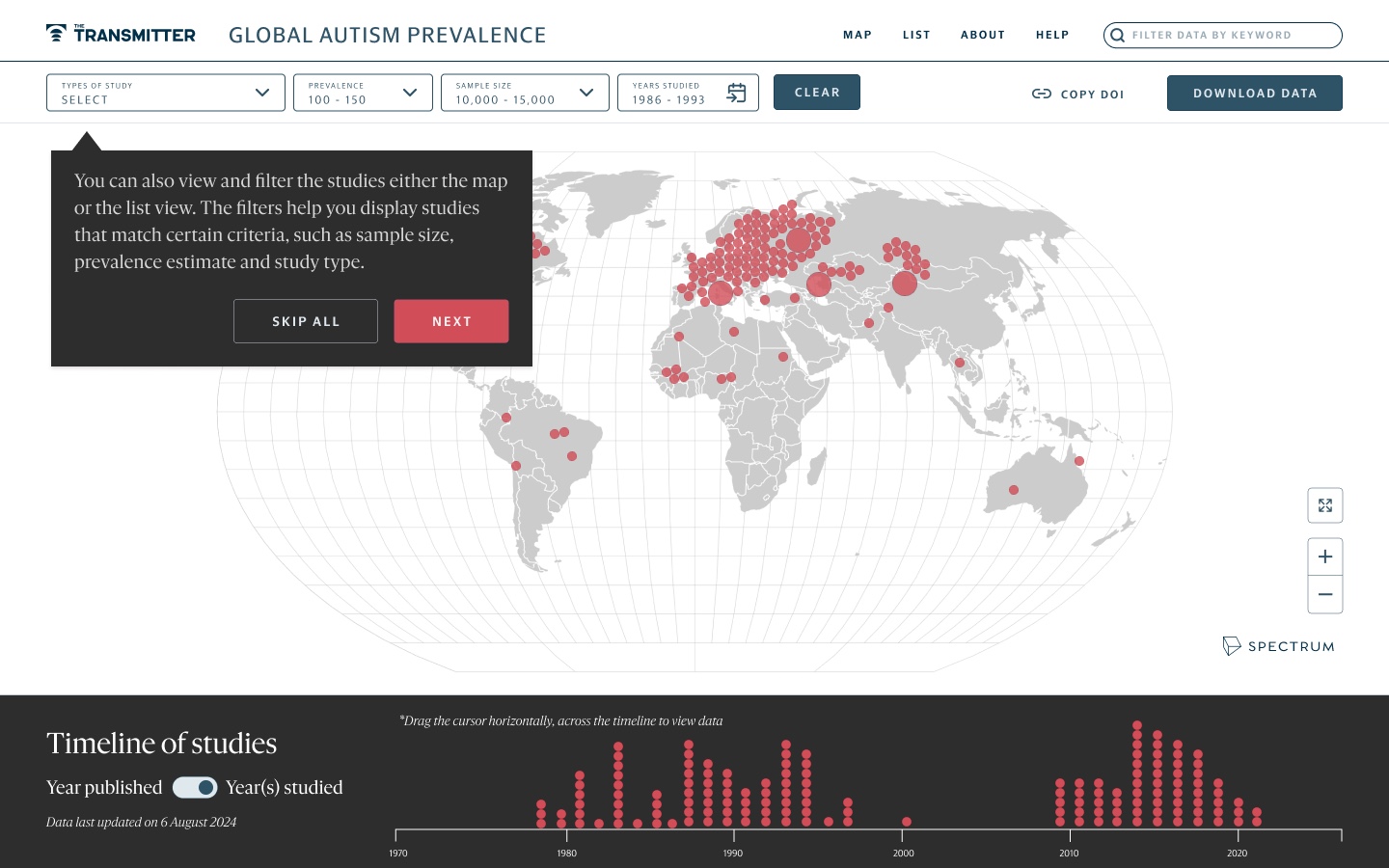
I designed an onboarding flow as a series of tooltips that opens from a Help link in the header. It walks a newcomer through the main parts of the map one at a time: clicking a dot to open a study, reading the prevalence, confidence interval and IQ figures in a study’s details, filtering studies in the map or list view, and dragging across the timeline. Each tooltip offers Next or Skip all, and the last one ends with Done. The tour was meant to appear once, for first-time visitors.
The team treated the tour as a feature for a second phase of planning, in a later sprint. In the meantime, the short help line above the timeline, described below, gives a similar cue at the point where it is needed. Confirm whether the tour was built.
1. Opening a study
2. Filters and views
3. Reading a study
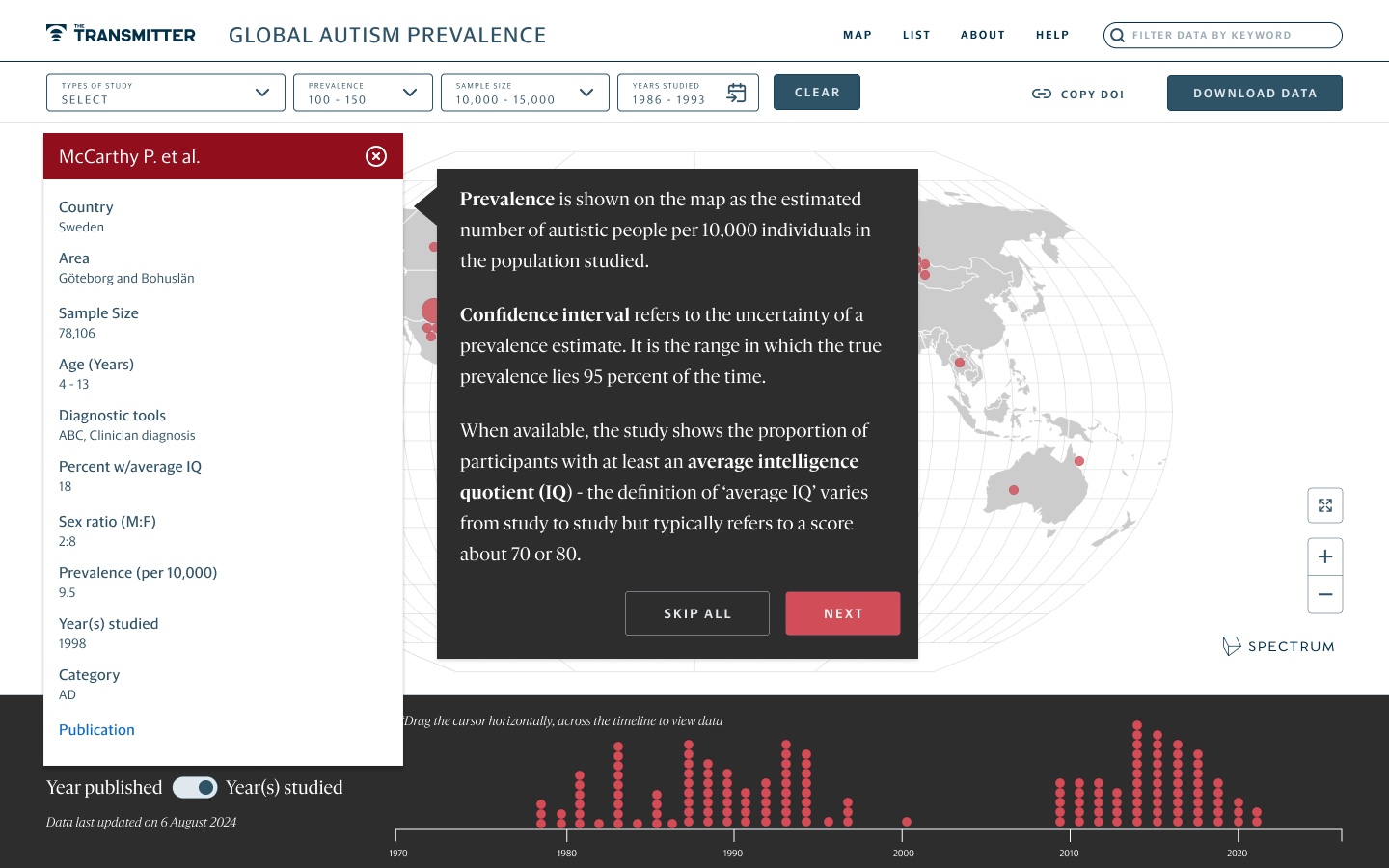
4. Using the timeline
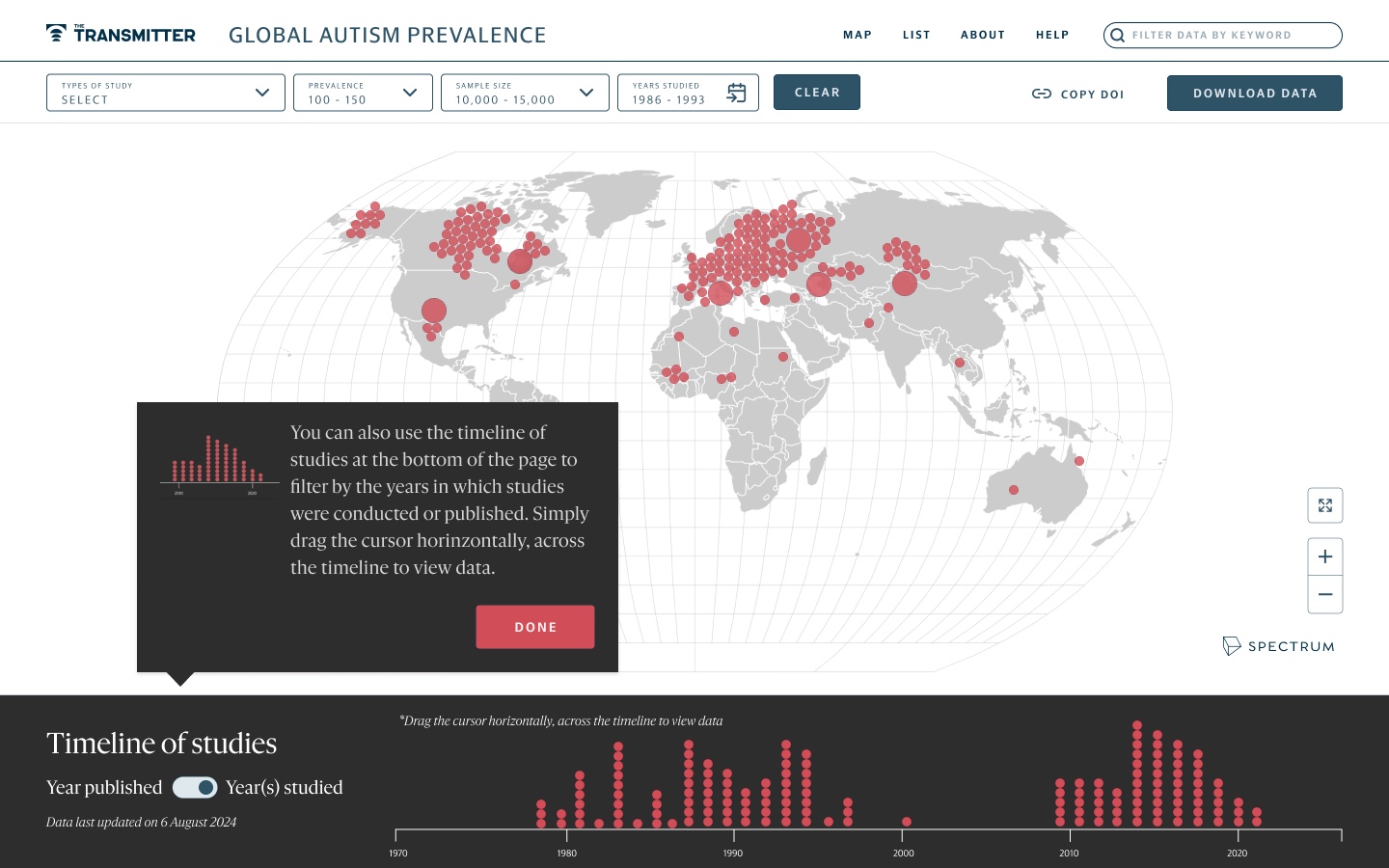
Figure 3
The four steps of the guided tour, which opens from Help in the header.
Placing the filters
Before restyling the filters, I had to decide where they should live, in a place that matched what readers expect from a map and left room for more filters later.
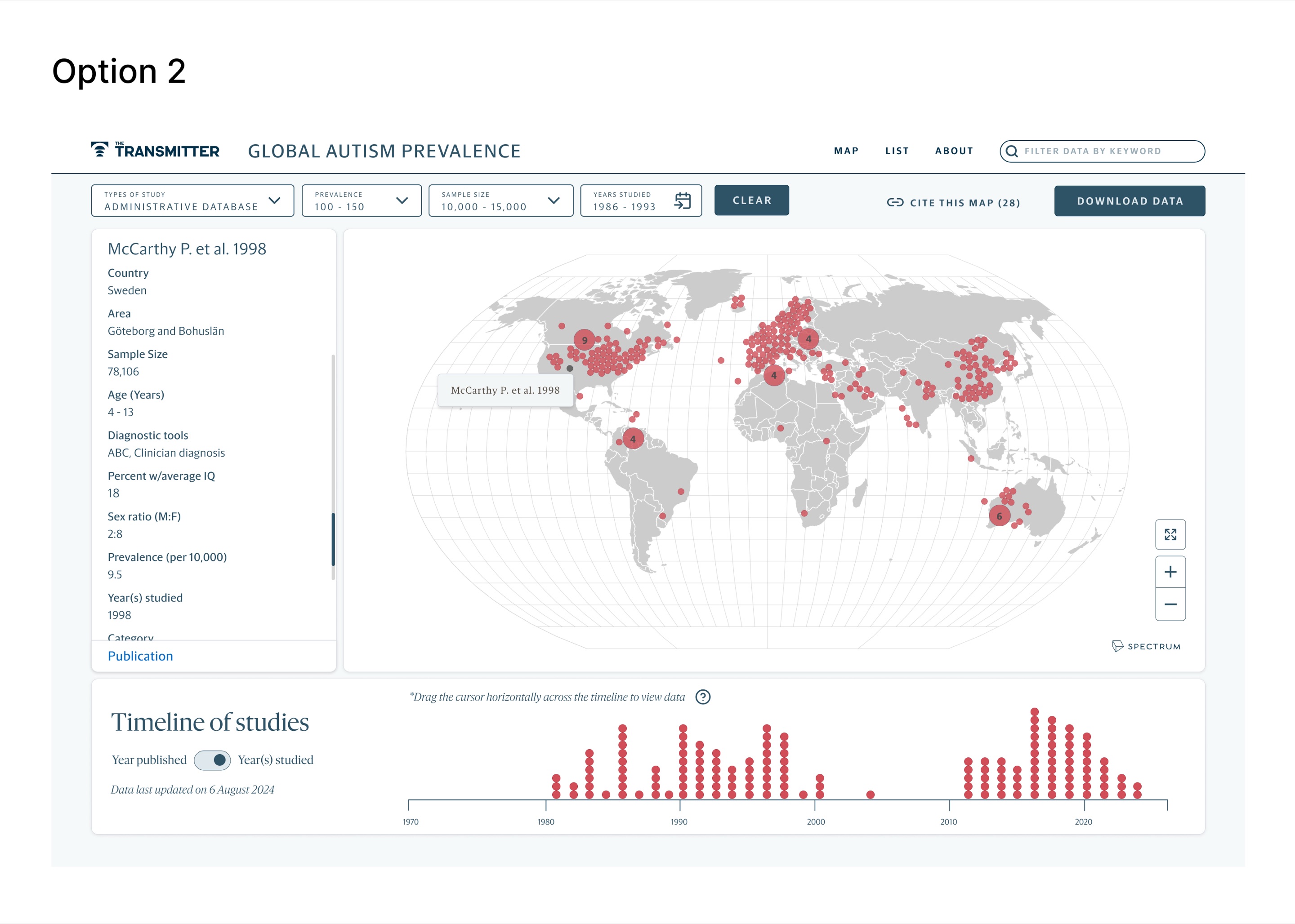
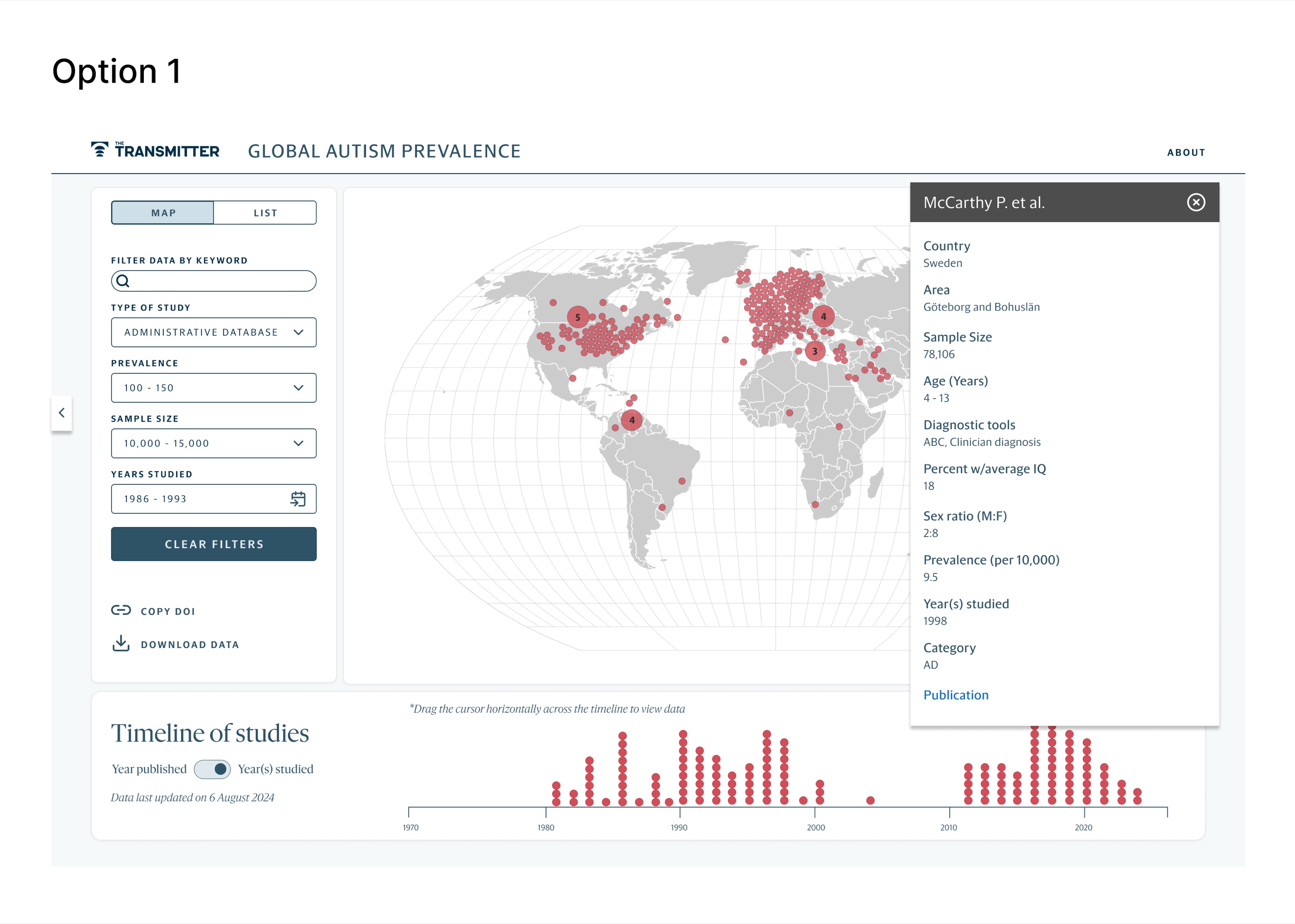
I designed two layouts and brought them to an internal design critique. The first put the filters in a column on the left of the map. It solved the cut-off values, because each field was now wide enough to show its selection, but the team asked whether a column could take more filters if the client wanted them, and worried that the page was becoming cluttered enough to discourage people from using the map.
The second layout moved the filters into a row above the map and kept the left side for the details of a selected study. When I reviewed both with The Transmitter, they chose the second. They felt it organised the page more clearly and left the middle of the screen for the map itself.
Option 1
Option 2
Figure 4
The two filter layouts. The Transmitter chose option 2, with the filters above the map.
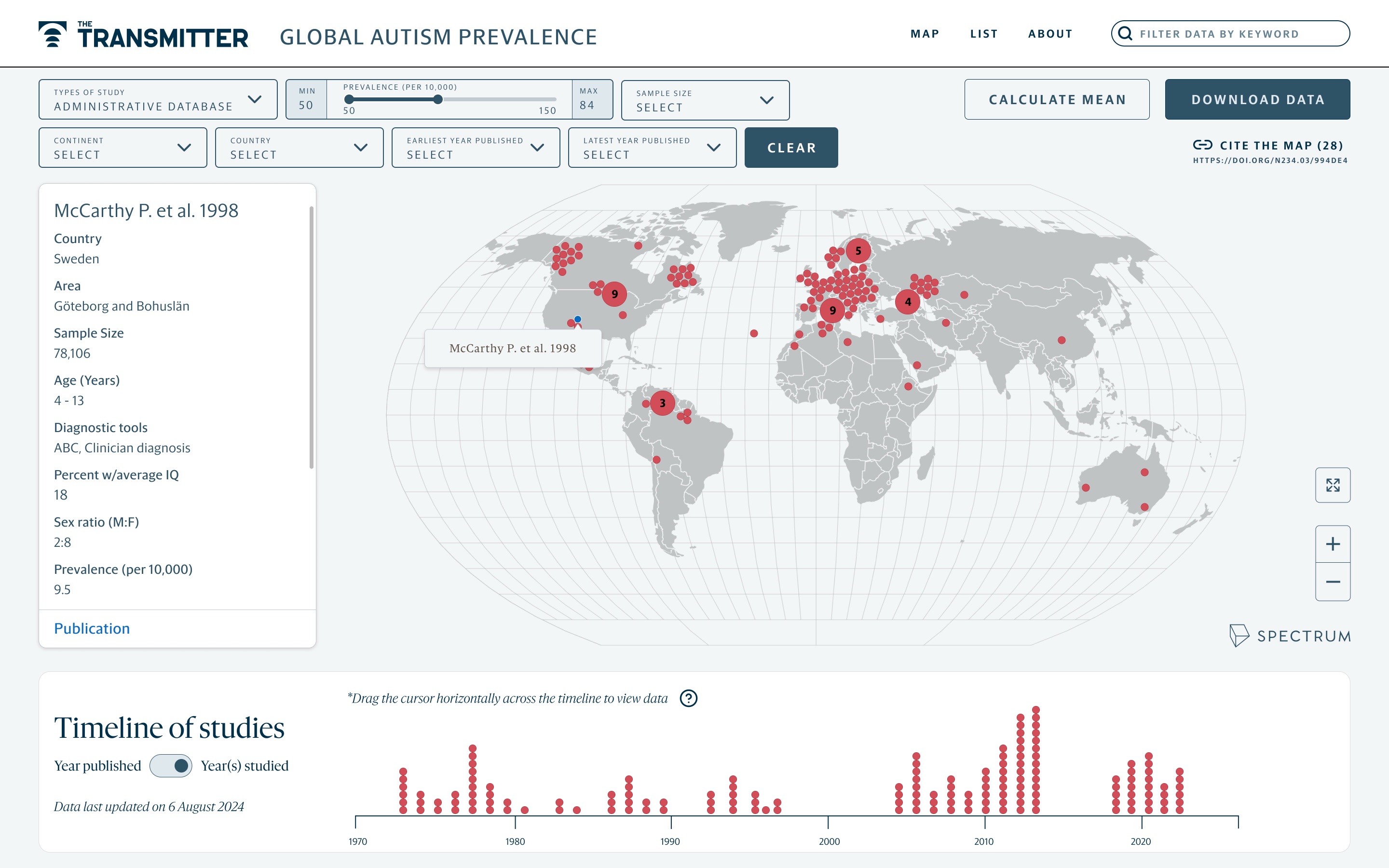
Figure 5
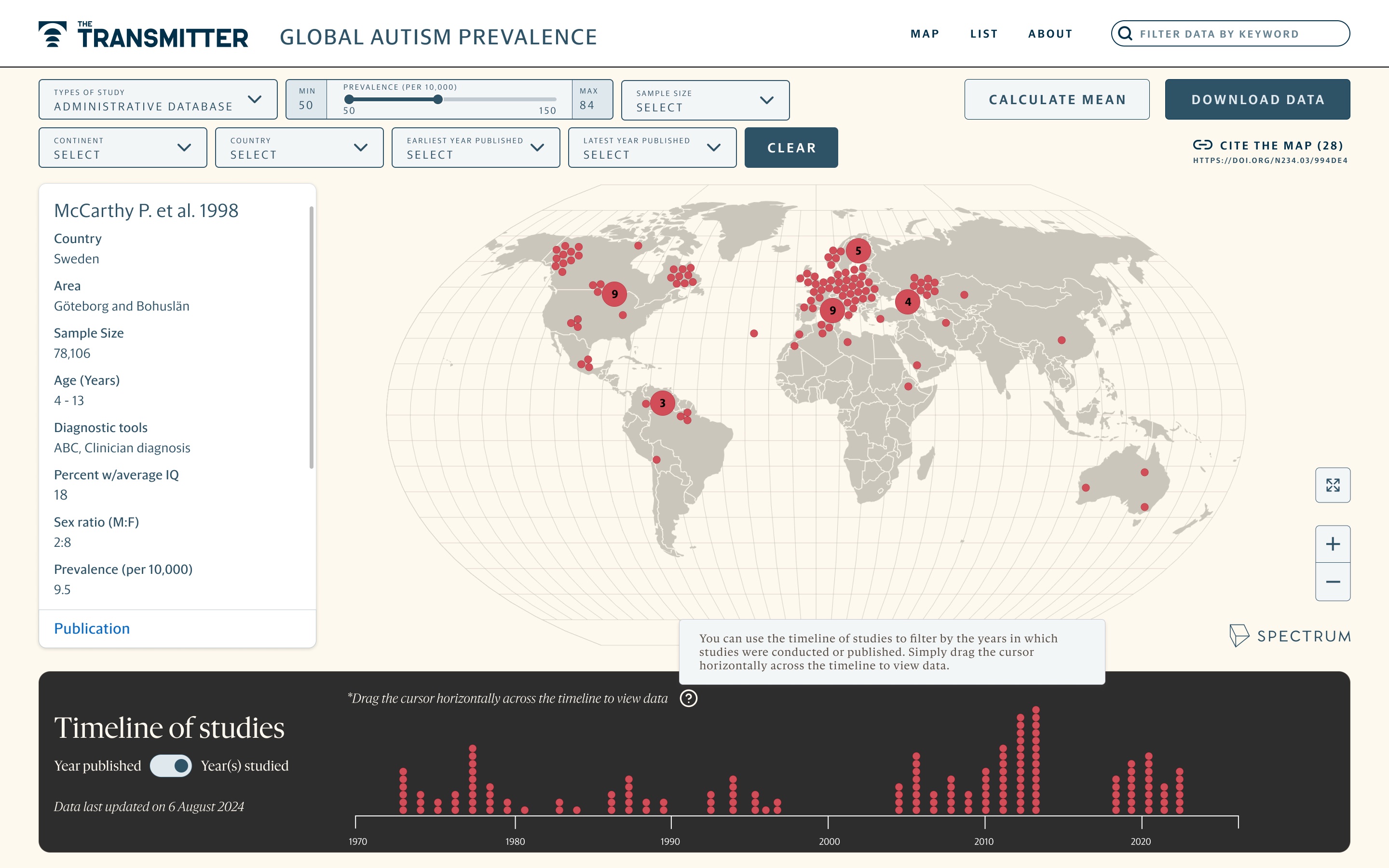
After the first review, The Transmitter asked for filters to narrow results by country, continent and sample size, four new filters in all. They fit in the top row, and the study details became scrollable so that the panel could keep a fixed size.
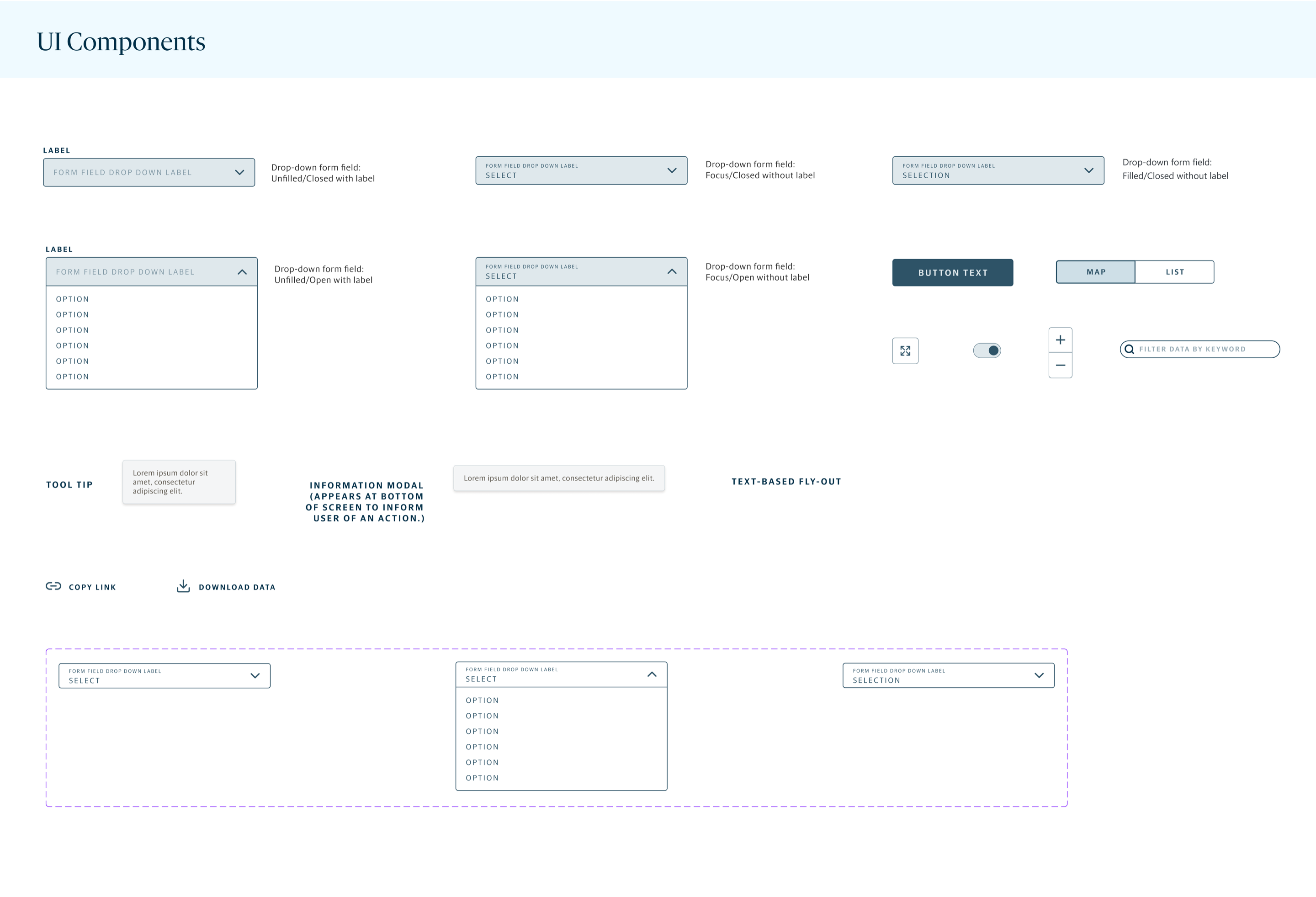
Figure 6
The filter components, documented on their own so that developers could see how each one behaves. There was no time for an interactive prototype in the first sprint, so this library did that job.
Choosing a colour style
With the layout agreed, the team debated four colour styles for the map, and Elm & Graphite won.
Each style kept the same layout, filters and red study dots, and changed only the page background, the colour of the land and the panel behind the timeline. Light & Grey used a white timeline panel on a pale grey page. Elm & Graphite set the map on a warm elm background with a dark graphite timeline. Cloud & Midnight and Platinum & Midnight paired cool grey backgrounds with a midnight blue timeline. Comparing them in the same screen made the differences easy to judge. Add why Elm & Graphite won.
A. Light & Grey
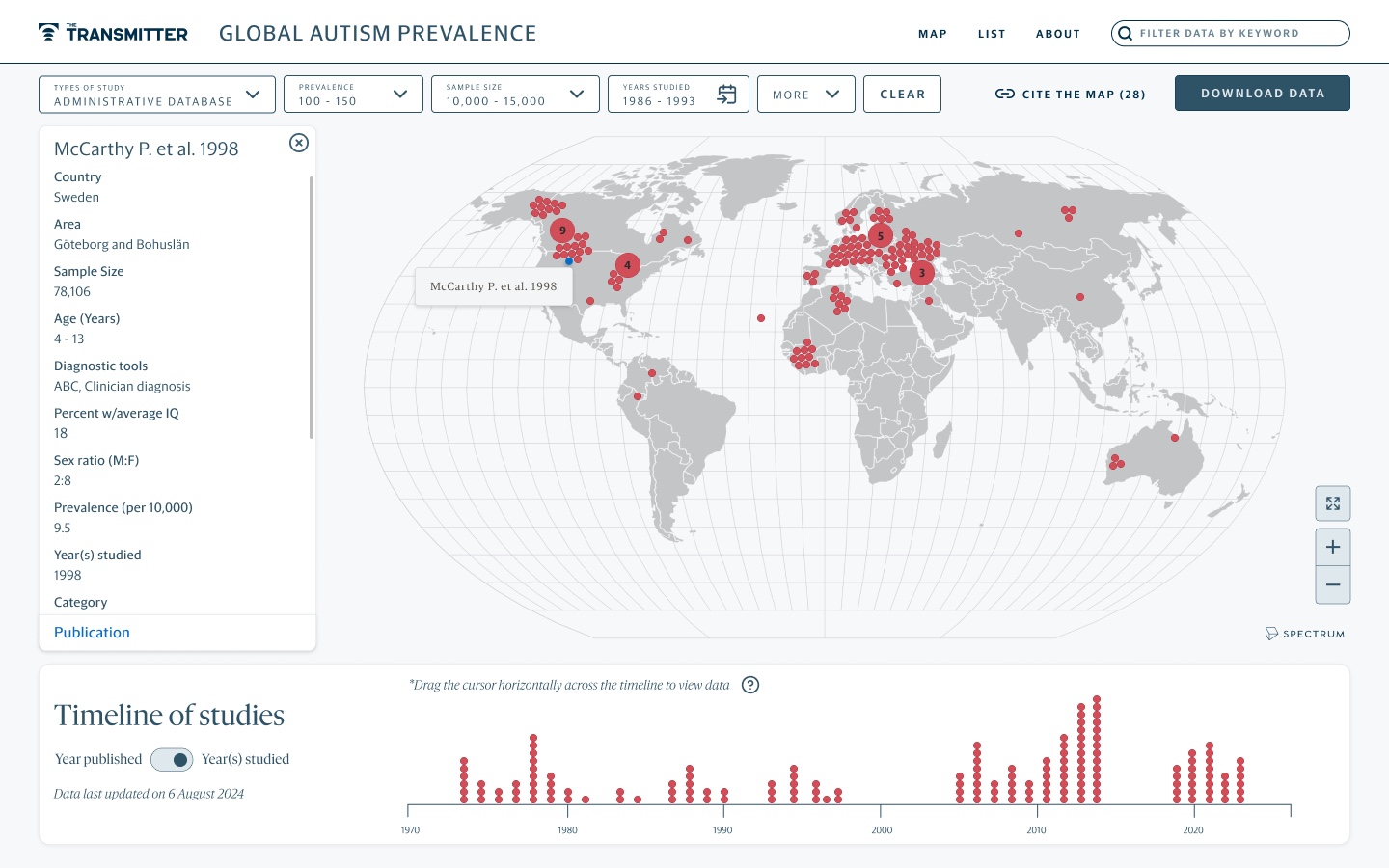
B. Elm & Graphite, chosen
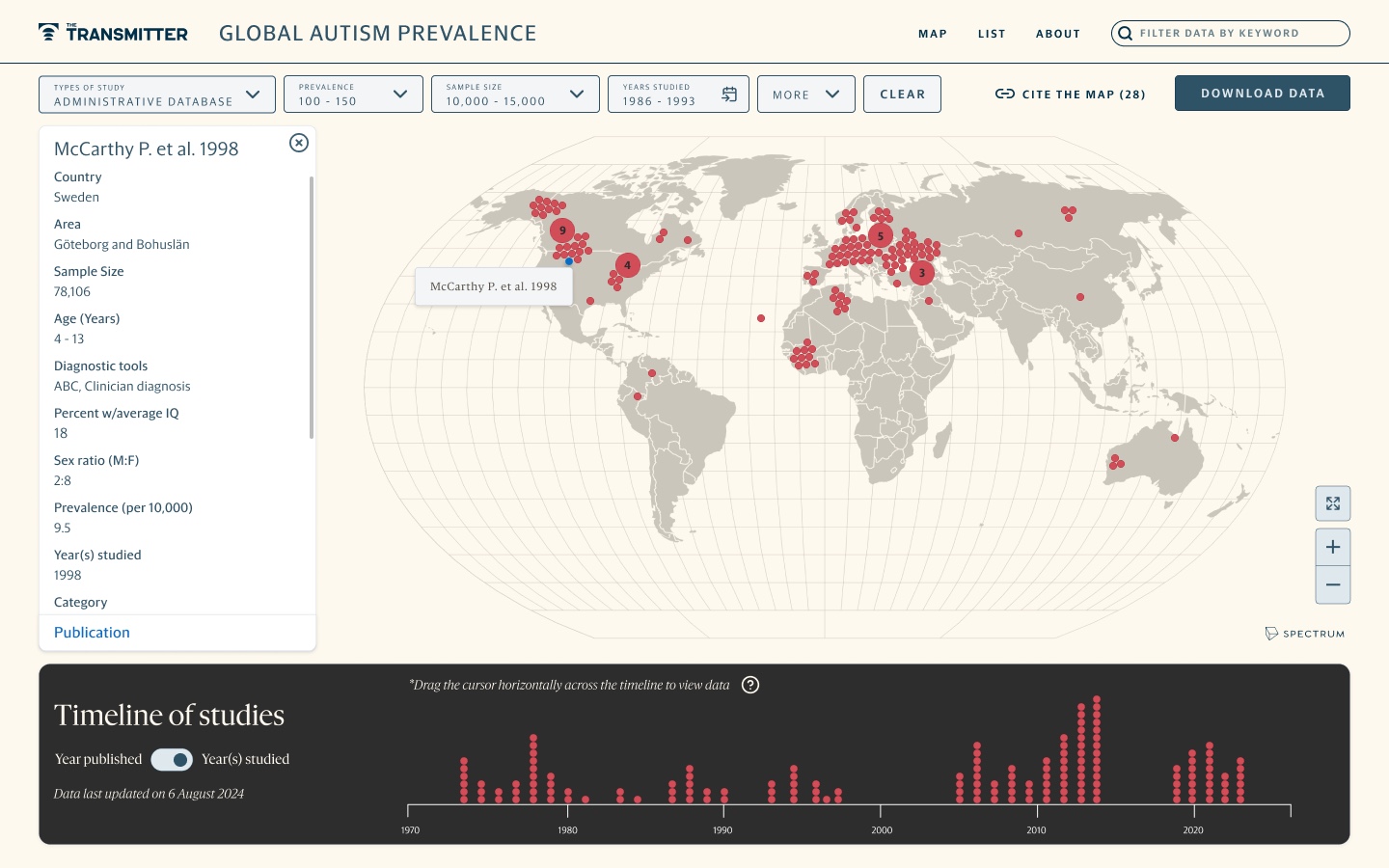
C. Cloud & Midnight
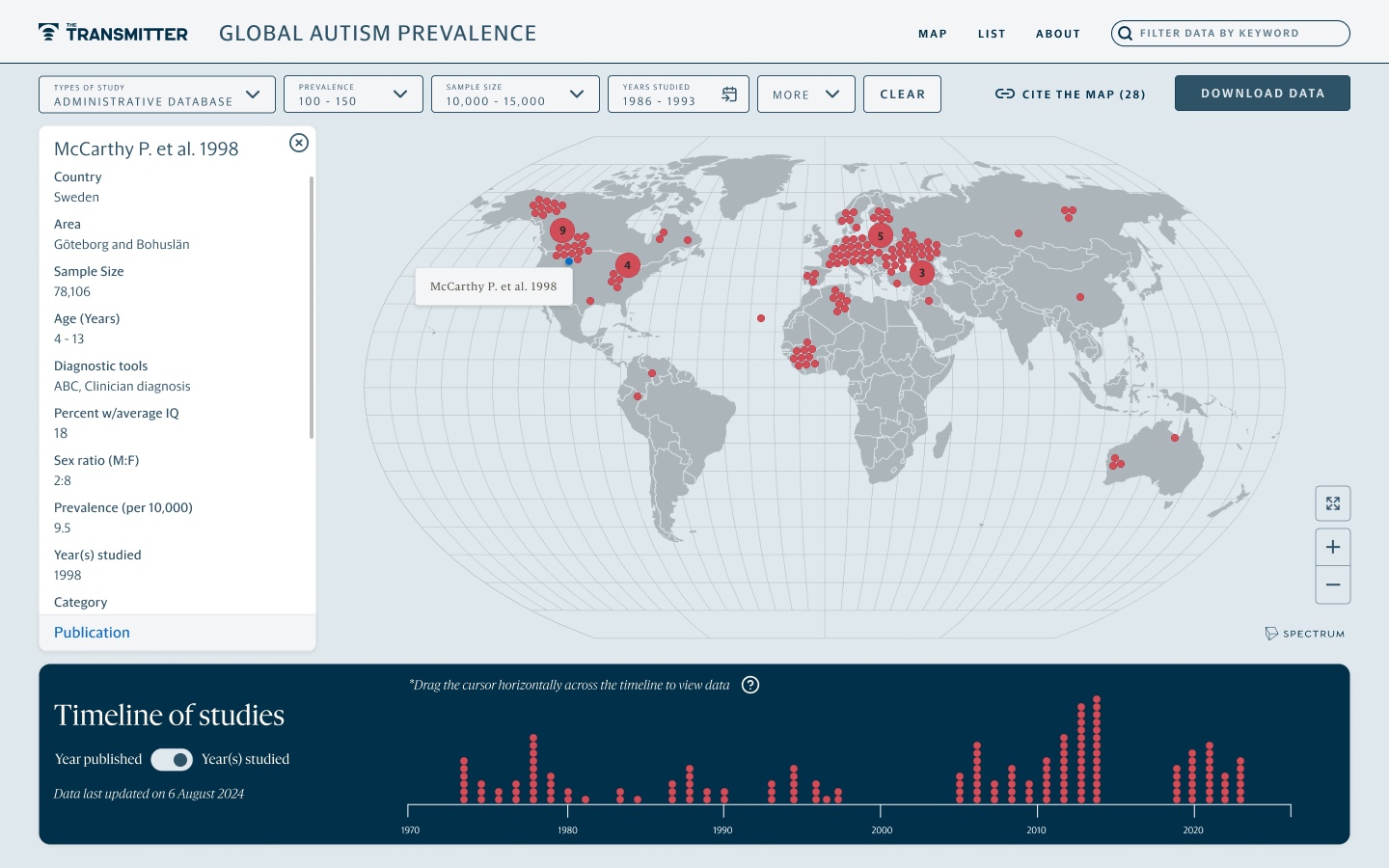
D. Platinum & Midnight
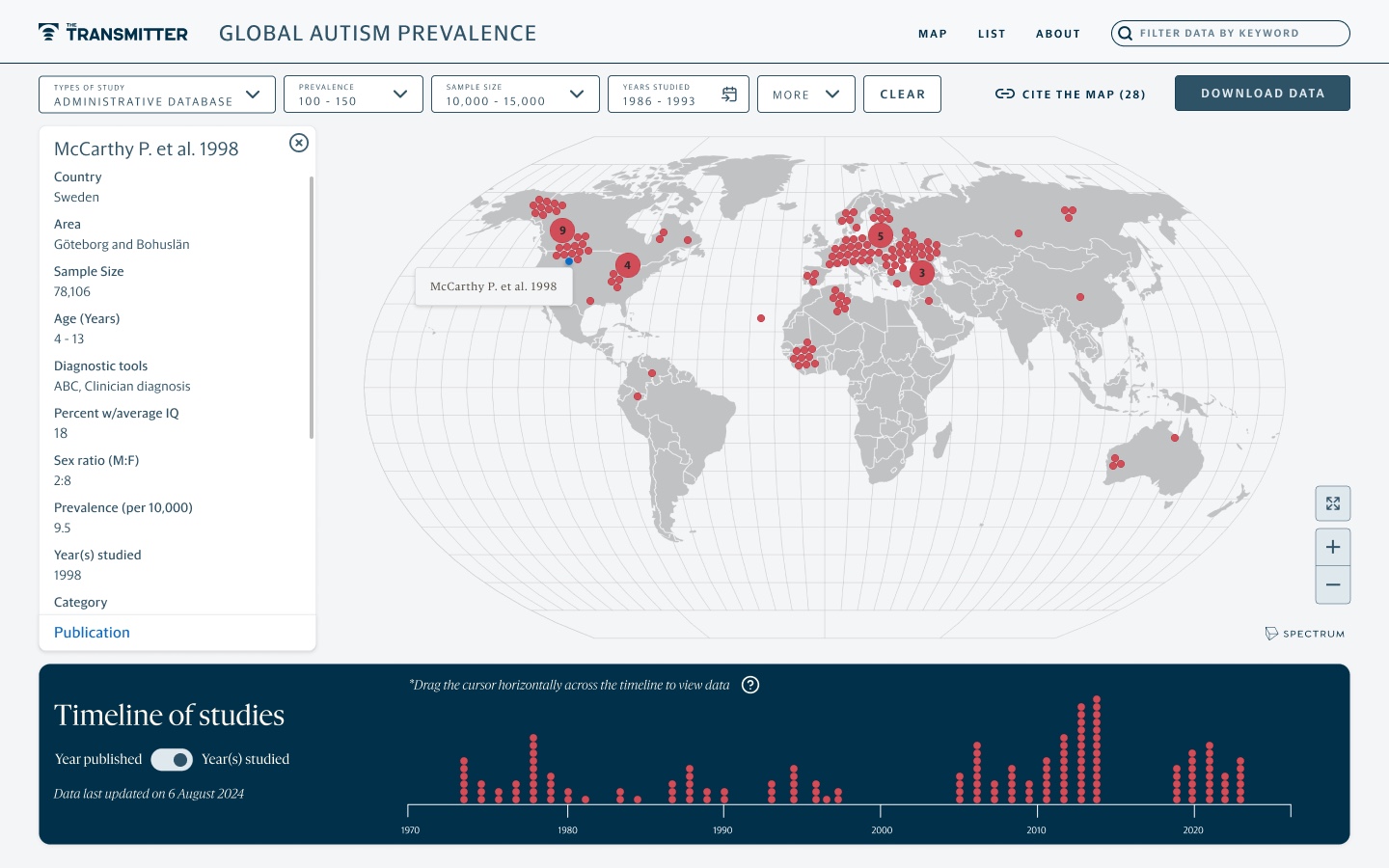
Figure 7
The four colour styles the team debated. Elm & Graphite was chosen.
Making the dots legible
Each dot on the map is a study, so a reader needs to be able to see every dot, tell which one is selected and connect it to its details.
We asked which colours to use for the default, hover and selected dots and whether they were accessible, and what should happen when a reader zoomed in. The three decisions below follow those questions.
01
Choosing an accessible dot colour
Problem
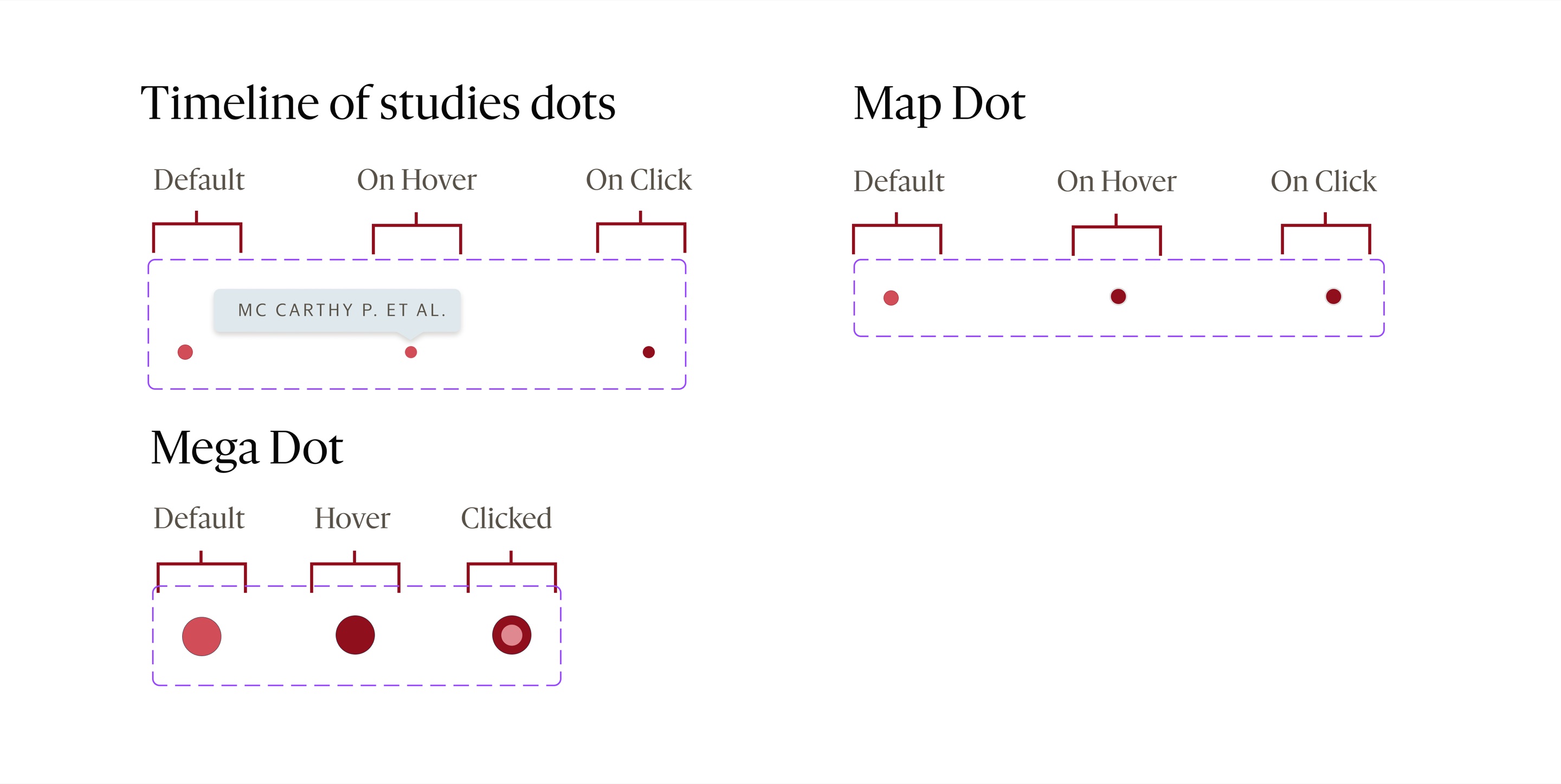
The brand colour I first chose for the dots from The Transmitter’s design system failed contrast guidelines in its hover and selected states.
Chose
I documented every state of every dot, including the larger recommended dots and the dots on the timeline, so that each could be checked on its own.
Outcome
Dots are red by default, turn dark on hover and turn royal blue when selected, and all three pass WCAG on the map.
02
Testing for colour blindness
Problem
The Transmitter asked how the map would work for readers with colour blindness, most often a weakness in seeing red or green.
Chose
The senior UX designer ran the palette through a colour blindness checker for red and green weakness.
Outcome
We chose the option where hover turns dark and selected turns royal blue, which improves how the dots read without compromising accessibility for readers with colour blindness.
03
Matching a dot to its details
Problem
Readers needed to see at a glance which dot a study’s details came from.
Chose
A selected dot turns blue and shows a small label with the study’s name, and the same name heads the details in the side panel.
Contrast check

Dot states
Figure 8
A light blue component failing WCAG AA, and the library of dot states used to check each one.

Figure 9
The Transmitter’s palettes run through a colour blindness checker for red and green weakness.
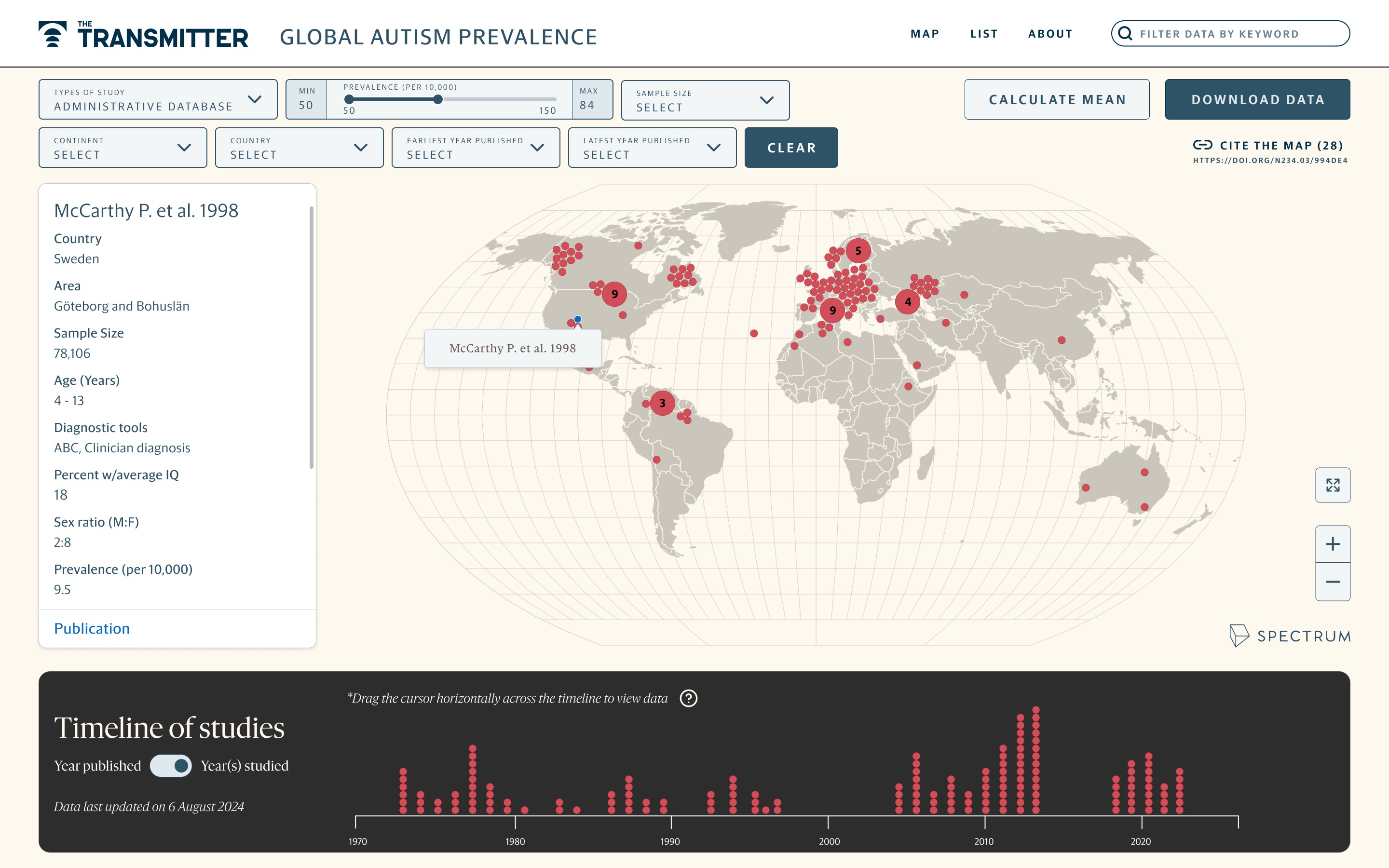
Figure 10
The redesigned dots, which pass WCAG in every state.
On accessibility
A map that researchers cite has to be readable by everyone who opens it, including readers who see colour differently.
Giving the details their own place
In the original map, a study’s details opened on top of the map, so reading one study hid the others.
In the second round of design discussions, I moved the details into a side panel on the left of the map, where they never cover a dot. I also stopped the map from growing past the edge of the page when a reader zooms in, so that dots no longer disappear off screen.
The side panel also gave the map a place to introduce itself. Before a visitor selects anything, it welcomes them and explains what the map shows. Once they select a dot, it fills with that study’s data.
Welcome
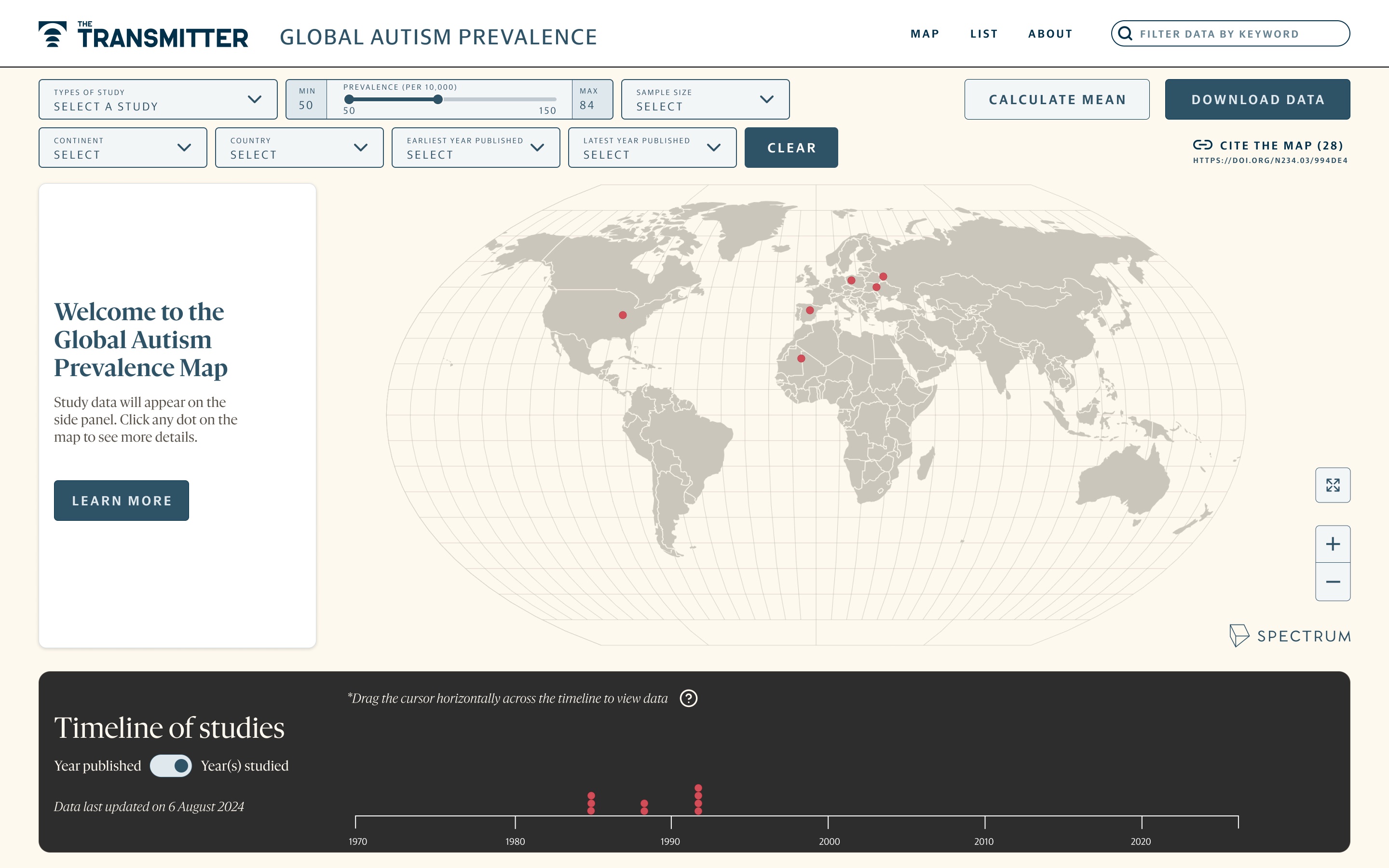
Study selected
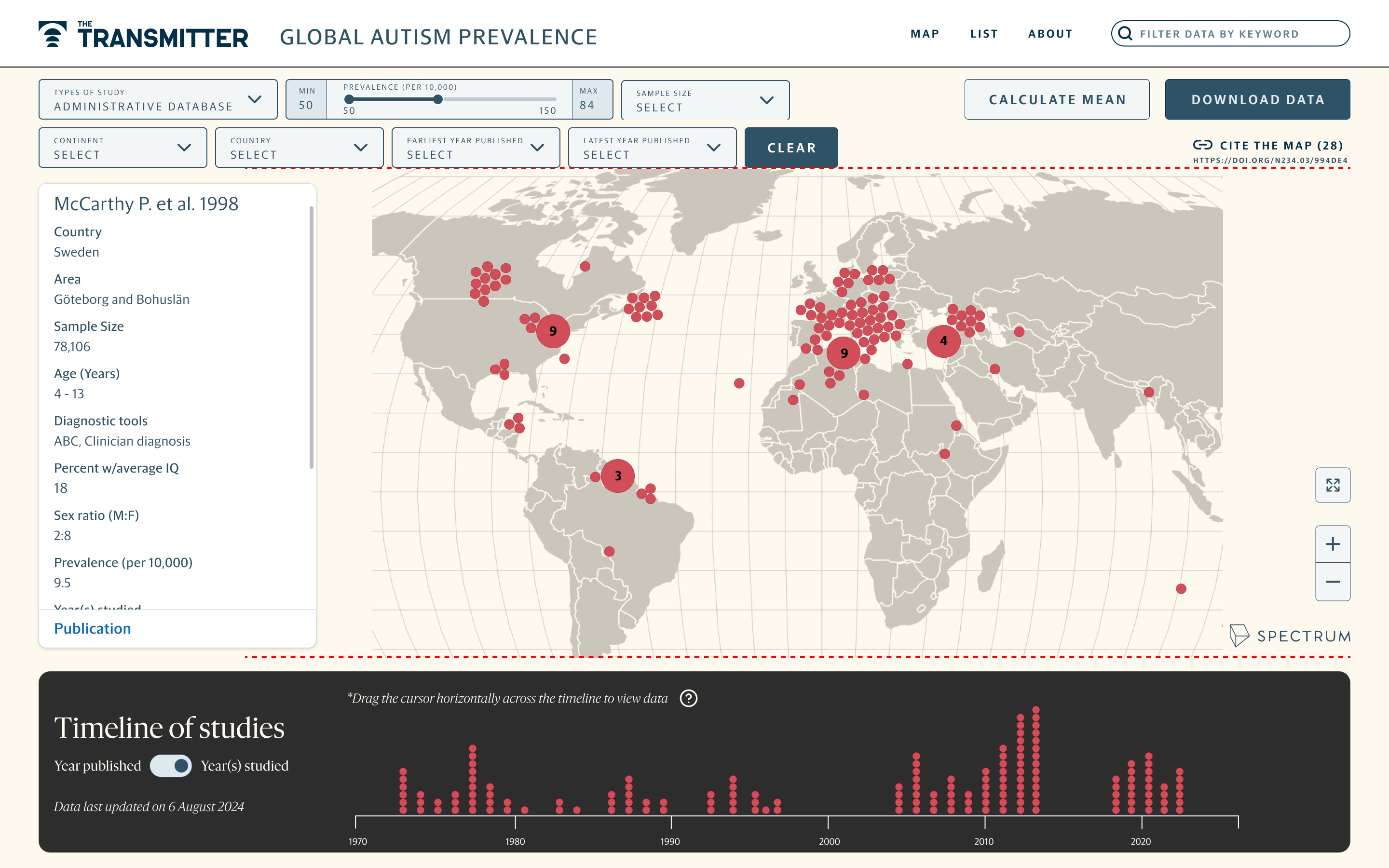
Figure 11
The side panel before and after a study is selected.
Making the timeline discoverable
The timeline of studies let readers drag across a range of years to filter the map, but nothing told them they could.
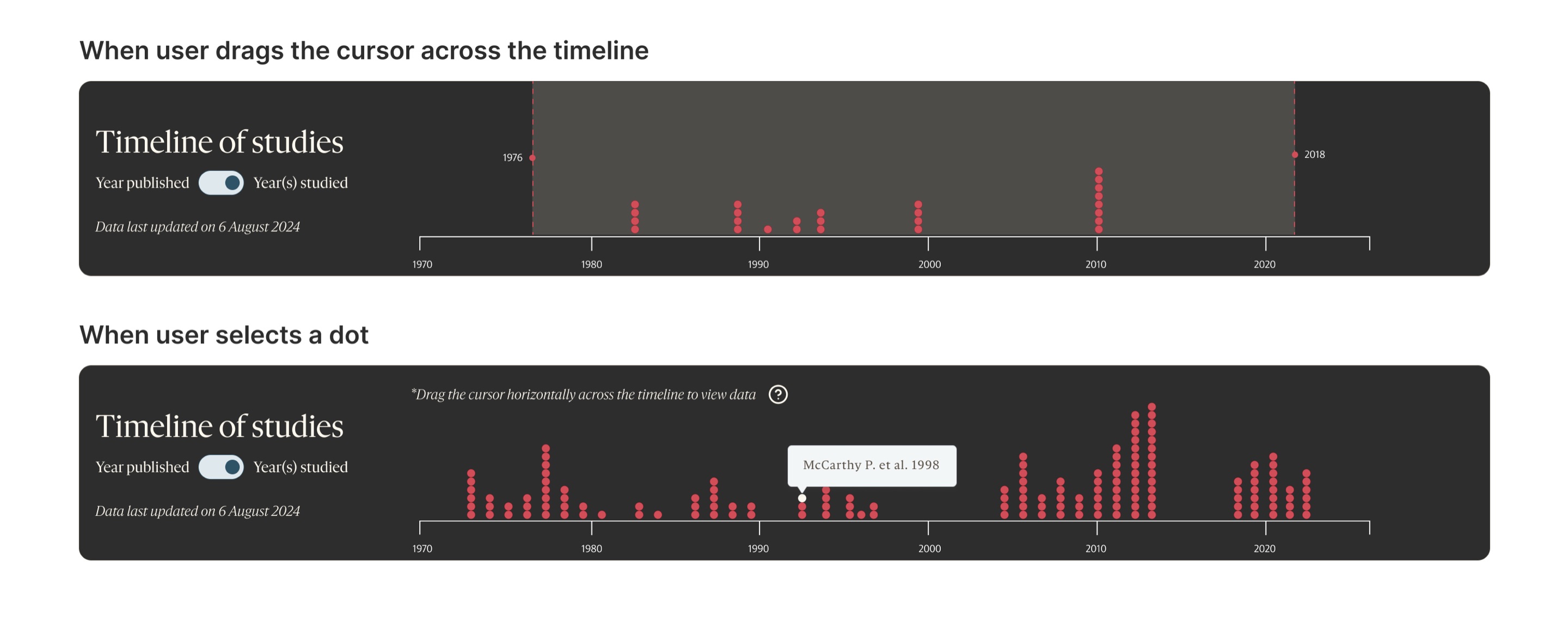
I added a short line of help text with an icon above the timeline, which says that it can be dragged. Hovering over a dot on the timeline shows the study’s name and year in a small tooltip, and selecting it highlights the same study on the map and shows its details in the side panel, so the three parts of the map work together.
Original timeline

Dragging the original
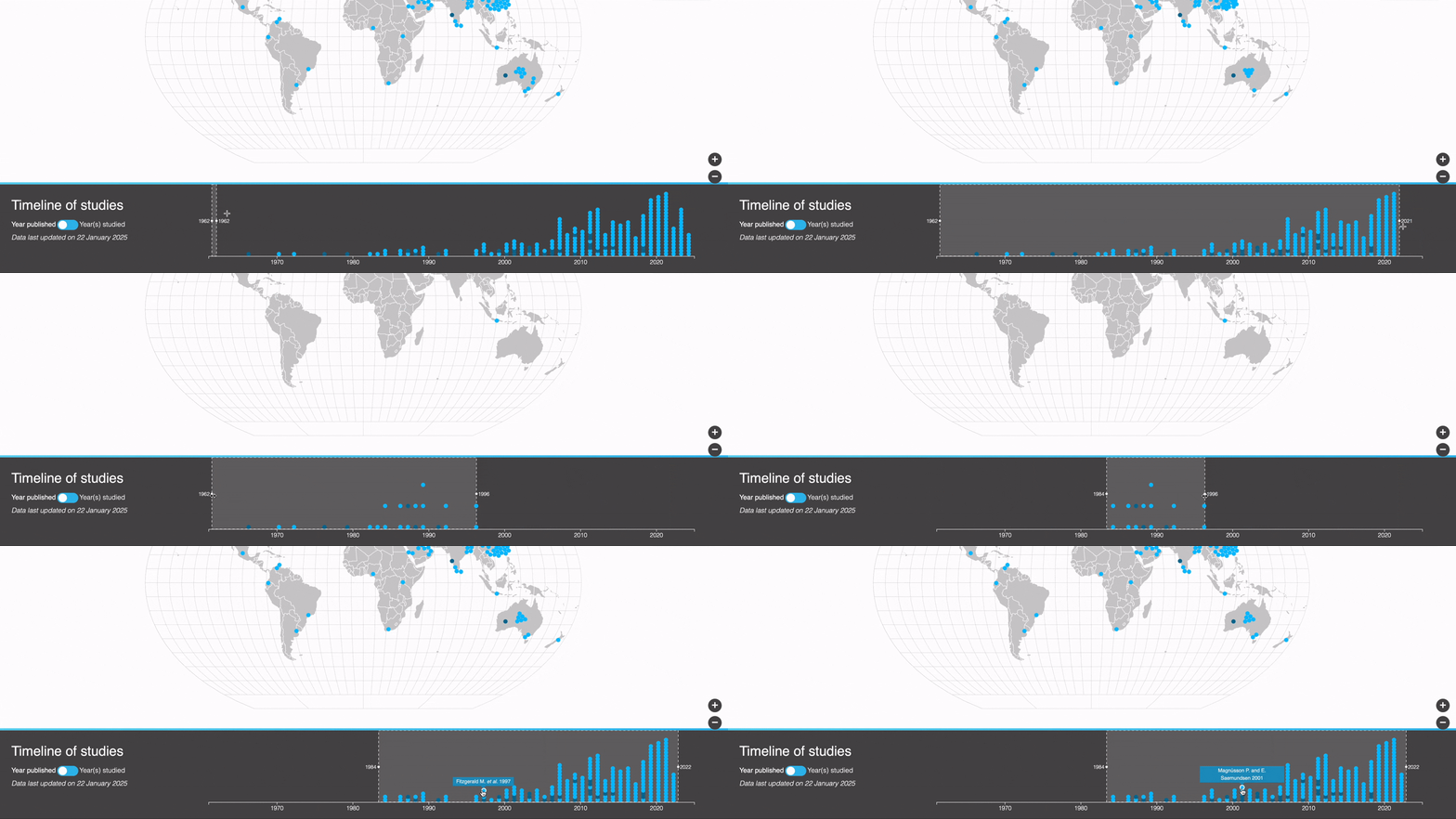
Figure 12
The original timeline, and a recording of it being dragged to choose a range of years.
Figure 13
The redesigned map, with a help line above the timeline.
Timeline states
Selected on the map
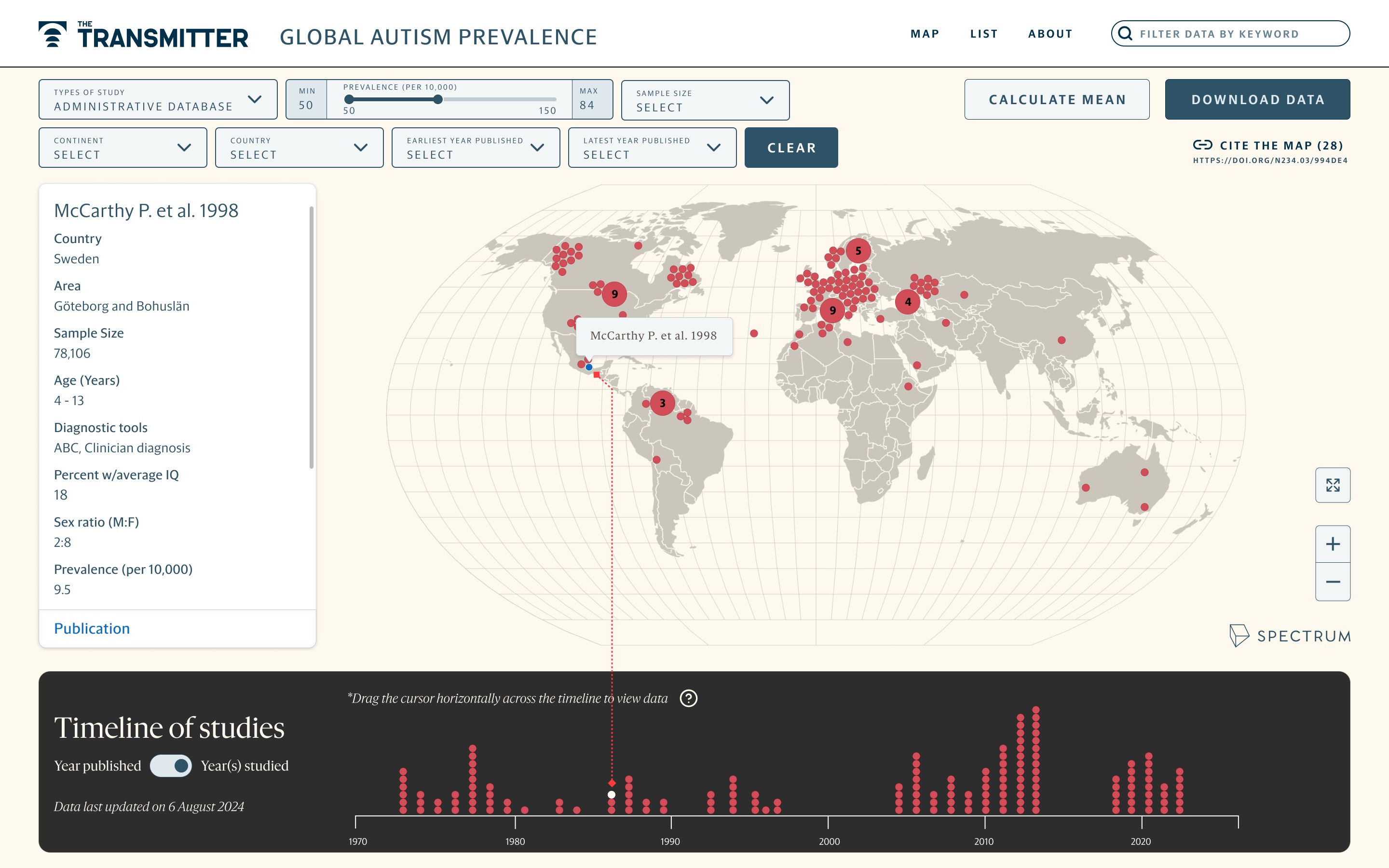
Figure 14
Dragging a range and selecting a single study on the timeline, and the same study highlighted on the map.
Outcome
The Transmitter praised the redesign for its attention to detail and its inclusivity, and the design was handed off for development.
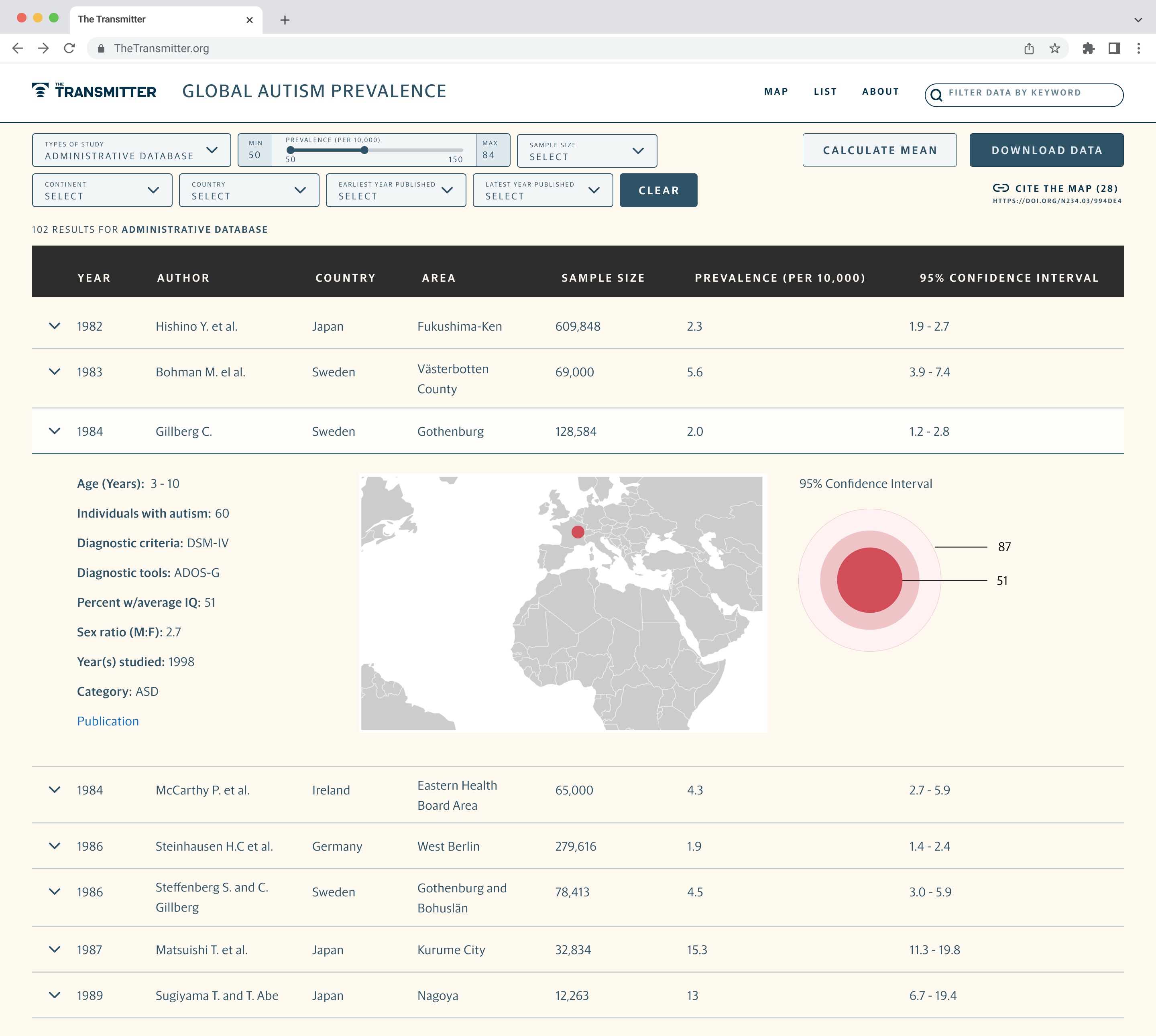
The map was designed for desktop only, because its main readers are researchers and scientists writing articles and citing it as a source, and a short message tells visitors on smaller screens to switch devices. The redesign also offers a list view of every study for readers who prefer a table. The redesigned map launched in production in March 2025.
List view
Desktop only
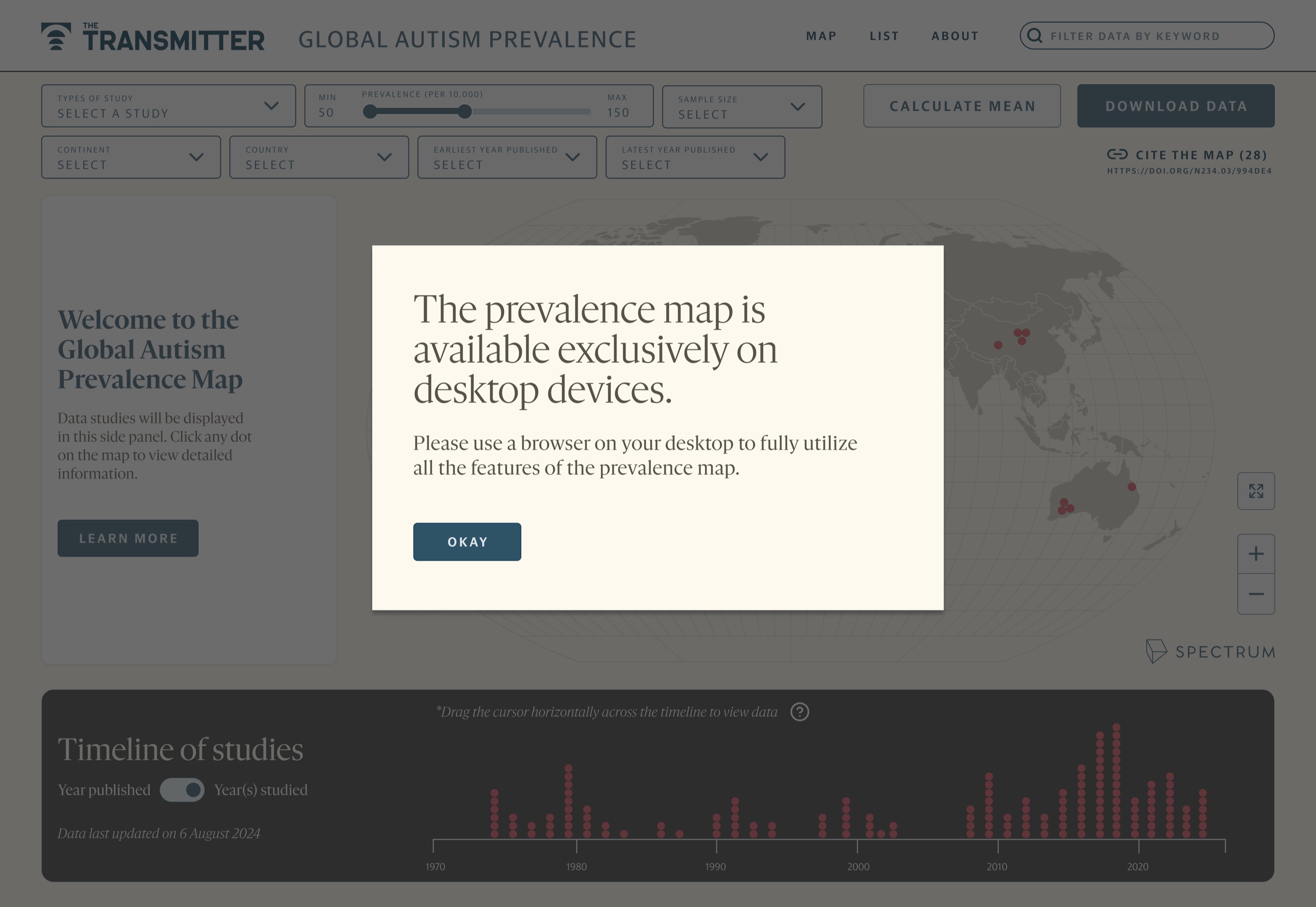
Figure 15
The list view of studies, and the message shown on devices smaller than a desktop.
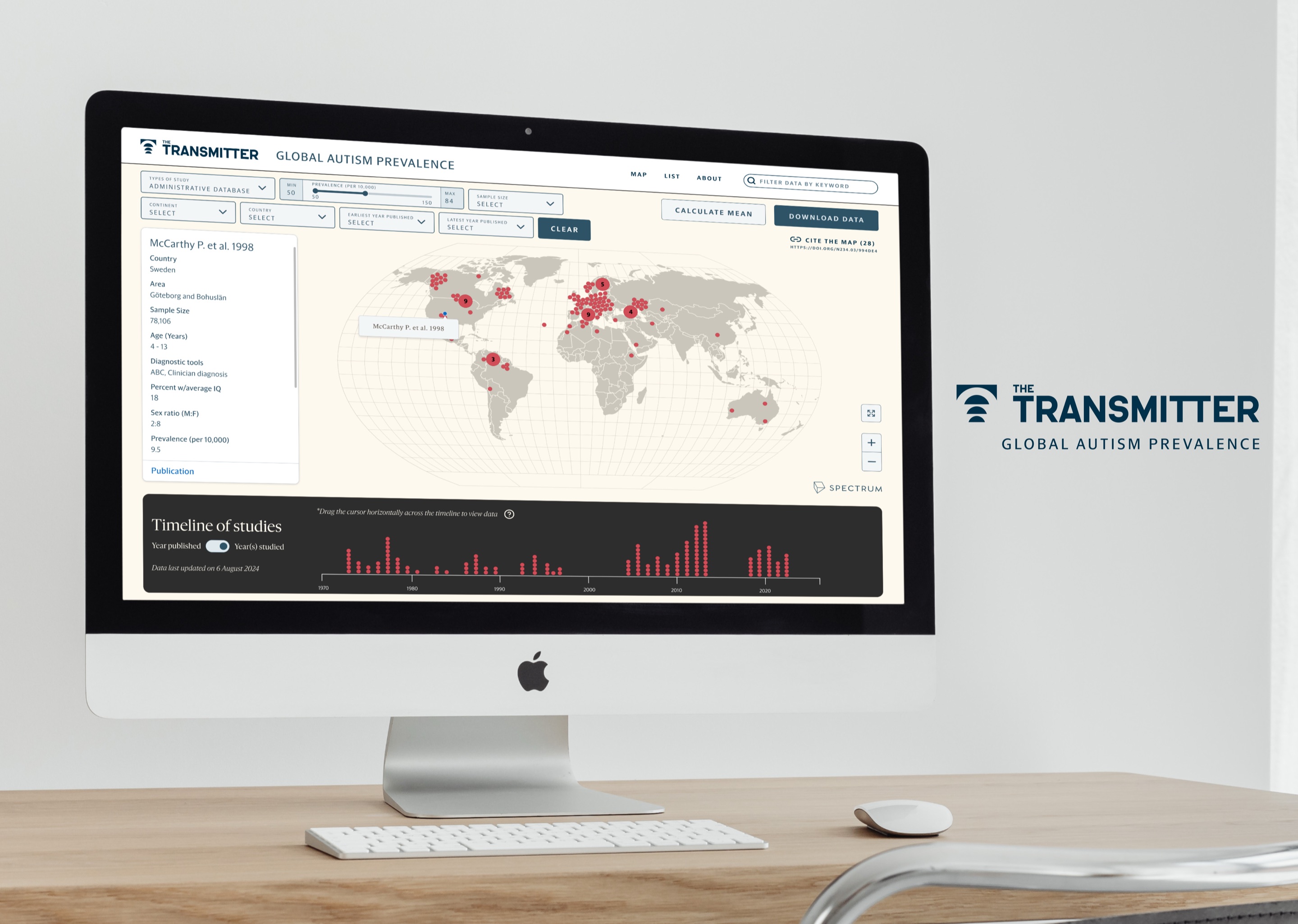
Figure 16
The redesigned prevalence map.
Limitations and future work
The lesson I would carry forward is that small cues, such as a label on an icon or a line of help above a timeline, often do more for a dense tool than a new layout.
Evaluation
The decisions were checked in design critiques, with The Transmitter and with accessibility tools, not in sessions with researchers. Watching researchers find and cite a study would show whether the changes help. Add any testing you ran.
Mobile
The map remains desktop only. A simpler mobile view, perhaps built on the list, would reach readers who arrive from articles on their phones.
Prototype
There was no time for an interactive prototype in the first sprint, so behaviour was documented in a component library instead.
Building tools for science? Let’s talk.
I partner with research teams, labs, and science publishers to design software and visualizations that make complex research easier to use and understand. Tell me a little about your project.